Single sign-on providers
Prepare the provider
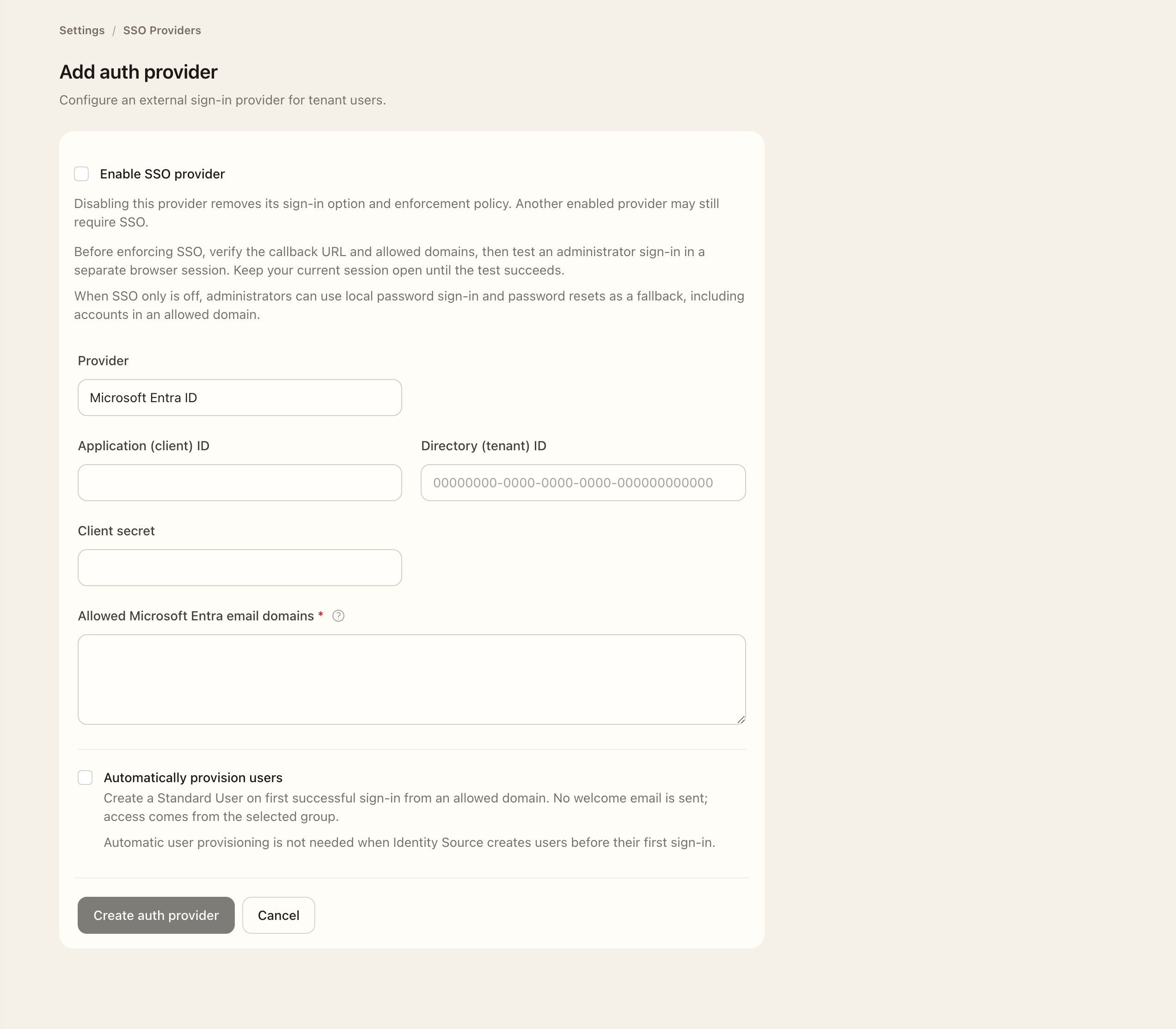
- As an Organization Administrator, open Settings → SSO Providers and add or edit Google or Microsoft Entra.
- Enter the provider application details and register the callback URL shown by Superviso in that application.
- Set the allowed sign-in domains; an empty allowlist does not admit users.
- Review just-in-time provisioning and the group assigned to new users.
- Save and test provider sign-in with an authorized account before considering SSO-only enforcement.
Microsoft Entra requires the Application (client) ID, client secret, and Directory (tenant) ID. Configure the provider's allowed sign-in domains; an empty allowlist does not permit access.
Configure admission
Review whether just-in-time provisioning is enabled and which Superviso group new users receive. That group's roles determine any product access beyond baseline membership. SSO authentication and authoritative directory synchronization have different purposes; enabling one does not configure the other.
Save the provider configuration, then sign in through the provider to test the connection.
Optional and required SSO
An enabled provider with SSO-only mode off allows provider sign-in while retaining permitted local password access. Allowed provider domains restrict provider admission; they do not by themselves disable password sign-in.
An enabled provider with SSO-only mode on enforces that provider policy for everyone, including administrators. Check this setting carefully before enabling it and confirm that administrator accounts can use the provider. Password recovery and local-account controls follow the effective policy.
Use My Account and authentication logs to investigate individual sign-in issues.
Expected outcome
An admitted user can sign in through the enabled provider and receives the configured provisioning and group policy. Optional SSO retains permitted password access; SSO-only mode enforces the provider policy, including for administrators. SSO setup does not configure authoritative directory synchronization.