Track your access requests
Open a request
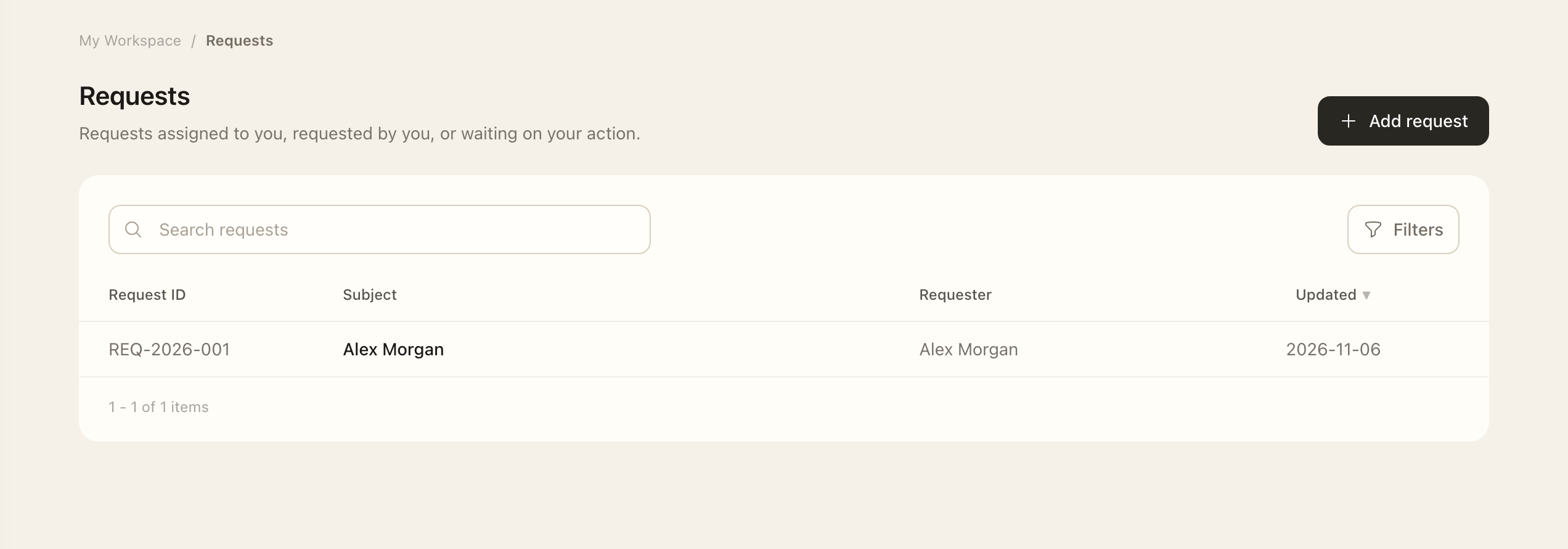
- Open My Workspace → Requests.
- Use the status filter to include the current or earlier request you need.
- Open its reference and verify the subject, justification, asset, and individual privilege actions.
- Check each privilege action’s approval and provisioning state to identify the next responsible person.
- If you have an assigned action, complete it through the request’s available controls; otherwise follow up with its assigned approver or provisioner.
Check the next action
A draft needs its requested privilege changes and submission. A submitted request may need an approver's decision, implementation by a provisioner, or confirmation that access was removed. Check each privilege action; different parts of the same request can be at different stages.
An approved request is permission to change access, not confirmation that the system has already changed. Contact the assigned provisioner when approval is complete but access is unavailable.
Create or change a request
Follow Access requests for the full creation, submission, approval, and provisioning workflow. Draft privileges can be adjusted before submission. After submission, privilege selection is fixed; participants with permission can cancel unfinished work.
Reviewers and approvers
When you are assigned an action, it also appears in Tasks. Use the request to check the business reason, affected person, asset, and specific account before acting.
Expected outcome
The request shows the recorded state of each privilege action. Approval and implementation can be at different stages within one request. Confirm provisioning or deprovisioning before treating access as changed.