Navigation and search
My Workspace brings together your own work and the records you are responsible for. People with program area access can also browse the corresponding security program registries.
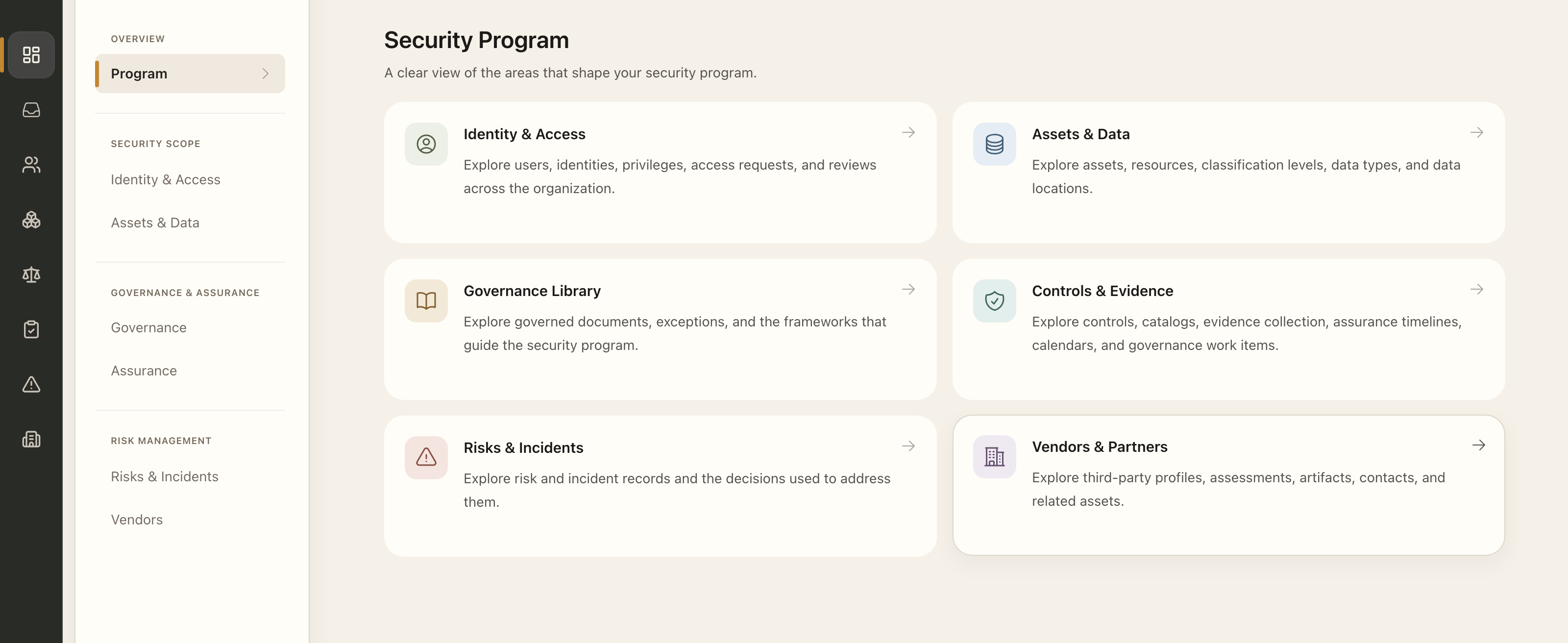
| Area | What you do there |
|---|---|
| My Workspace | Act on tasks, track access requests, participate in access reviews, and read documents. |
| Identity & Access | Maintain users, identities, and privileges; manage access requests and reviews. |
| Assets & Data | Document assets, resources, classifications, data types, and data locations. |
| Governance Library | Manage documents, versions, acknowledgements, exceptions, and reference frameworks. |
| Controls & Evidence | Maintain controls, assess maturity, review controls, and collect recurring evidence. |
| Risks & Incidents | Maintain the Risk Register and its assessments and response decisions. Incident management is coming soon. |
| Vendors & Partners | Maintain third parties, contacts, assurance artifacts, and assessments. |
On desktop, select a program area from the left rail, then use its sidebar to choose a page. On smaller screens, open the navigation menu. Opening a record exposes its related pages, such as assessments, linked records, or activity.
Use the search bar, or Command+K on macOS / Ctrl+K on Windows, to find available pages and records. Search only returns records you can access. Within a registry, use its search and filters to narrow the list; apply the selected filters and clear them when you want to return to the broader view.
Product overviews highlight work that needs attention. Open a count to view its related records. Use Refresh when available to update the summary, and the information icon beside it to check the calculation time. Counts summarize the records and work in each area.
Find a page or record
- Open a program area from the desktop rail, or open the navigation menu on a smaller screen.
- Select the relevant registry, then use its search and filters to find a record.
- Alternatively, open global search with Command+K on macOS or Ctrl+K on Windows and enter a page name or record reference.
- Open an accessible result and use its contextual sidebar to choose the related page.
- Clear registry filters when you need to return to the broader list.
Missing pages or actions
Navigation reflects your permissions. See Roles and permissions to understand product access and assignments.
Expected outcome
You reach a page or record your permissions allow, with its related pages available in the contextual sidebar. A search result or overview count does not grant additional access or complete any work.