Data locations
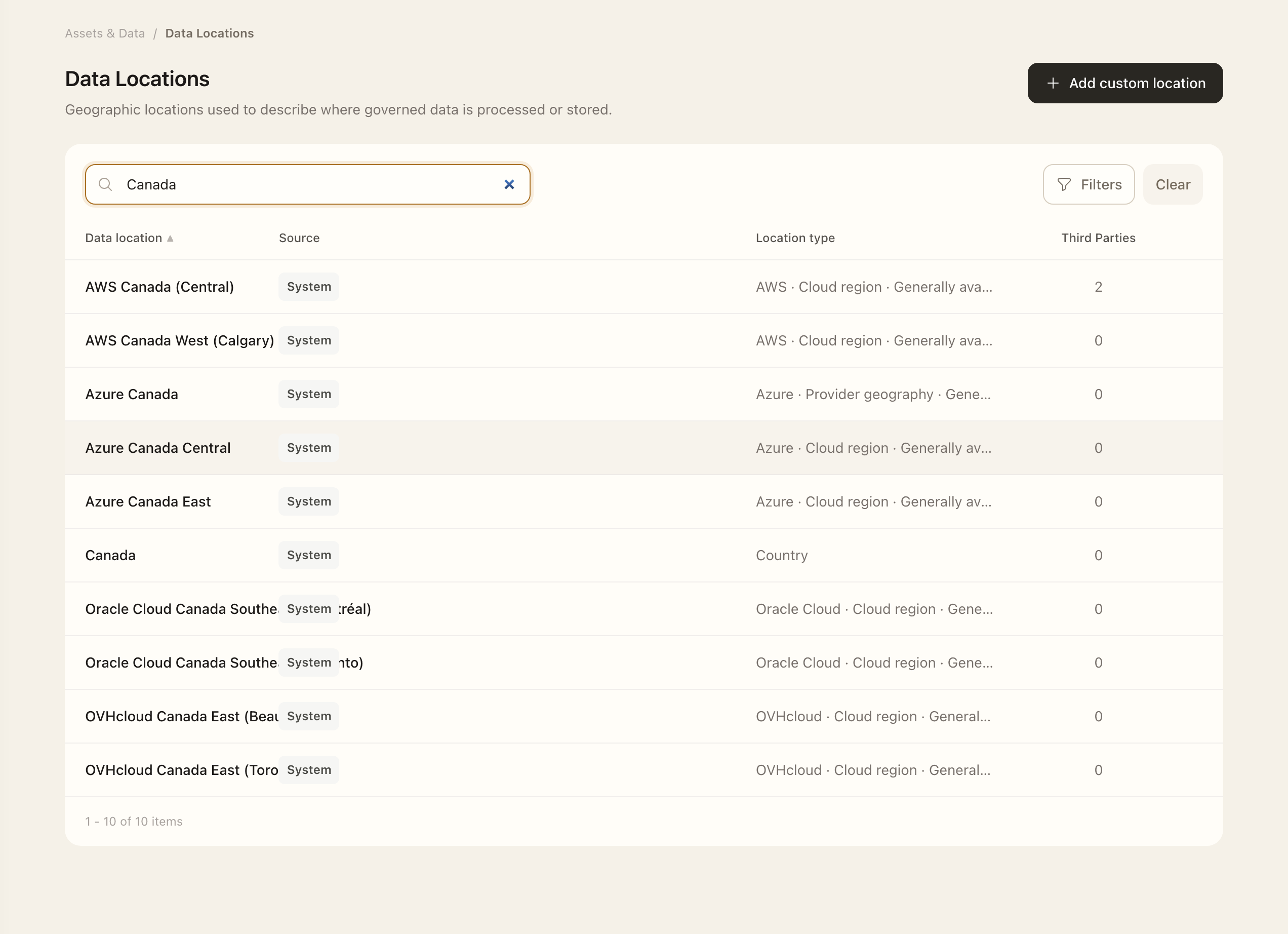
Find a location
- Open Assets & Data → Data Locations.
- Use the Source, Type, Provider, and Country filters to narrow the catalog.
- Open the matching location and check its geographic scope. The catalog includes cloud regions, provider geographies, countries, and Global / Worldwide.
- Use its related pages to inspect existing asset, resource, and third-party associations.
Use the level of detail you can confirm. A country-level statement and a specific cloud region communicate different scope. Global / Worldwide means known worldwide or multi-region processing; it is not a substitute for an undisclosed location.
Associate locations
Open the asset or resource's Data Locations page and use its management action to select applicable entries. Review a third party's processing locations through its assessment. A location's own detail pages show the assets, resources, and third parties associated with it.
System and custom locations
System locations are read-only. A location may be retired from new assignments while existing links remain available for history. Catalog naming changes retain existing associations.
Authorized administrators can create custom sites for organization-specific locations. Give the site a recognizable name and accurate geographic context. Before deleting a custom location, remove its links from active records.
Use Data types alongside locations to document both what information is involved and where processing happens.
Expected outcome
The location’s related pages show the associations saved from the relevant record workflow. System entries remain read-only. Location records describe processing geography and link to the assets, resources, and third parties using that location.