Maturity assessments
Start from the control
- Open Controls & Evidence → Controls, select the control, and open its assessment history.
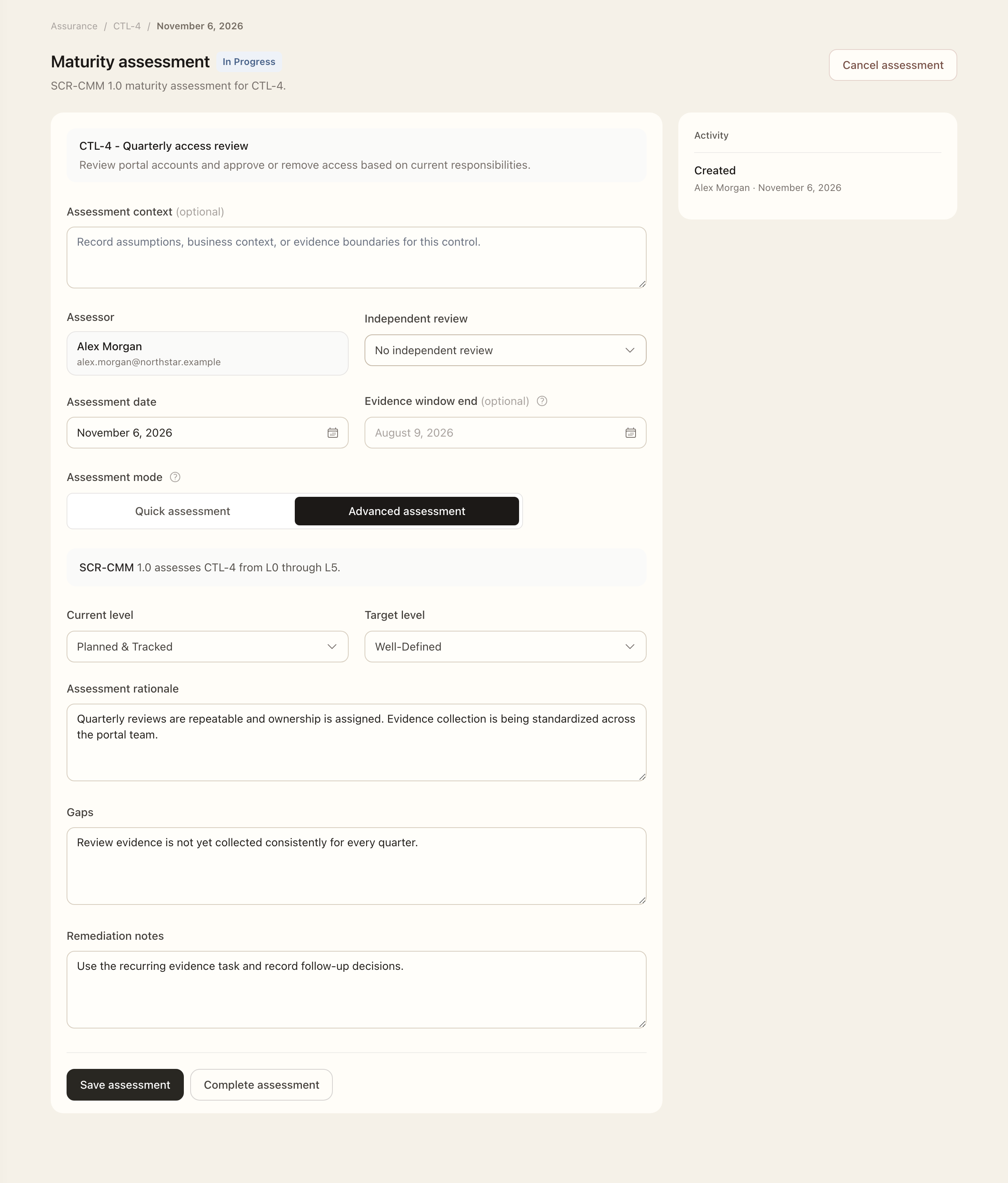
- Add an assessment or resume its existing active assessment.
- Confirm the assessment date and assessor.
- Check whether independent review is required and select the reviewer when applicable before recording maturity.
Only one draft, in-progress, submitted, or returned maturity assessment can be active for a control at a time. Resume that assessment before starting another.
Record maturity
- Choose Quick mode for maturity levels and reasoning, or Advanced mode for gap and remediation detail.
- Use the SCR-CMM L0–L5 scale to select the current and target maturity.
- Explain the selected levels and record assumptions or evidence boundaries in the assessment context.
- In Advanced mode, complete the applicable gap and remediation details.
- Save progress and resolve validation feedback before completion or submission.
A level without rationale is not a complete review basis.
Complete or submit for review
- Check that the maturity levels and required rationale are complete.
- Complete directly when independent review is not required, or assign a reviewer and submit when it is required.
- The assigned reviewer opens the Workspace Task, checks the maturity and rationale, and approves or returns the assessment.
- If returned, correct the missing or disputed content and resubmit.
- Open the control’s assessment history to check the completed or approved result.
An incomplete returned assessment is not a completed maturity result. Active assessments can be canceled before approval, retaining their lifecycle history.
Use the result
Inspect the control's assessment history to compare current and target maturity over time. A maturity assessment evaluates maturity; it does not apply control profile changes. Use a Control review to propose those changes.
Expected outcome
A completed or approved assessment appears in the control’s history with current and target maturity and rationale. Submitted work still awaits independent review. The result does not apply control-profile changes; use a control review for those changes.