Work items
Create a follow-up
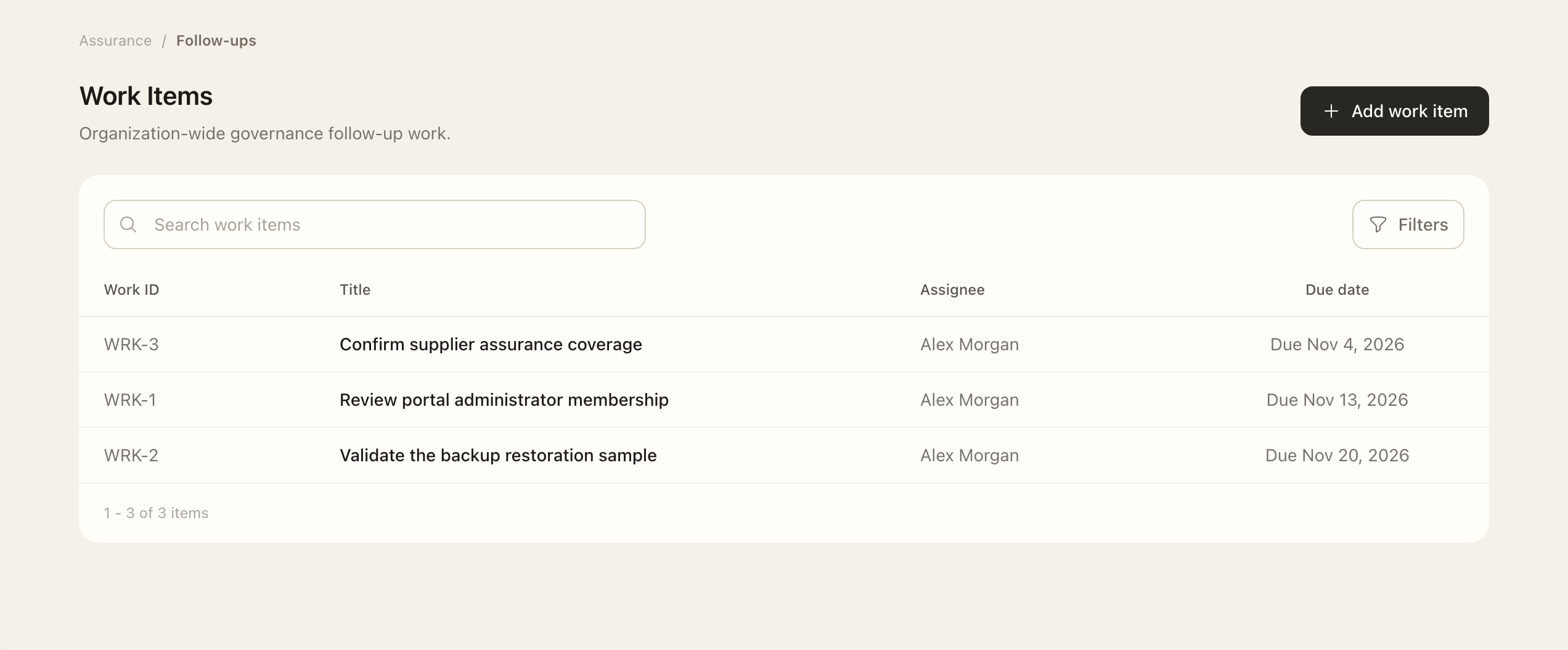
- As an Organization Administrator, open the organization-level Work Items registry.
- Choose Add work item.
- Enter a specific title, category, description, assignee, and applicable due date. Describe the expected result and related record.
- Save and open the assigned record to check its details.
- Ask the assignee to open the item from My Workspace → Tasks and update its status as work progresses.
Make the description specific enough that the assignee can understand the expected result and related record. The assigned work appears in that person's Workspace Tasks.
Track progress
Open the work item to review its details and update the lifecycle status as work progresses. Retain useful completion context rather than using a title alone to imply what was done. Use filters to find open or completed work.
Some workflows create linked work items, such as treatment follow-ups from third-party conclusions. Open those tasks from the source record when you need the original rationale. A third-party treatment task is created only after the required owner approval.
Personal work items
An organization setting controls whether users can create self-assigned items from My Workspace. Disabling personal creation does not remove existing assignments or workflow-generated work. See Tasks and follow-ups and Platform settings.
Use a dedicated approval, assessment, or evidence workflow when it exists; a generic work item's completion does not replace that source workflow's decision.
Expected outcome
The saved work item is assigned to the selected person and appears in their Tasks. Its completion records that follow-up’s status; it does not replace a dedicated approval, assessment, or evidence workflow.