Controls
Add an operating control
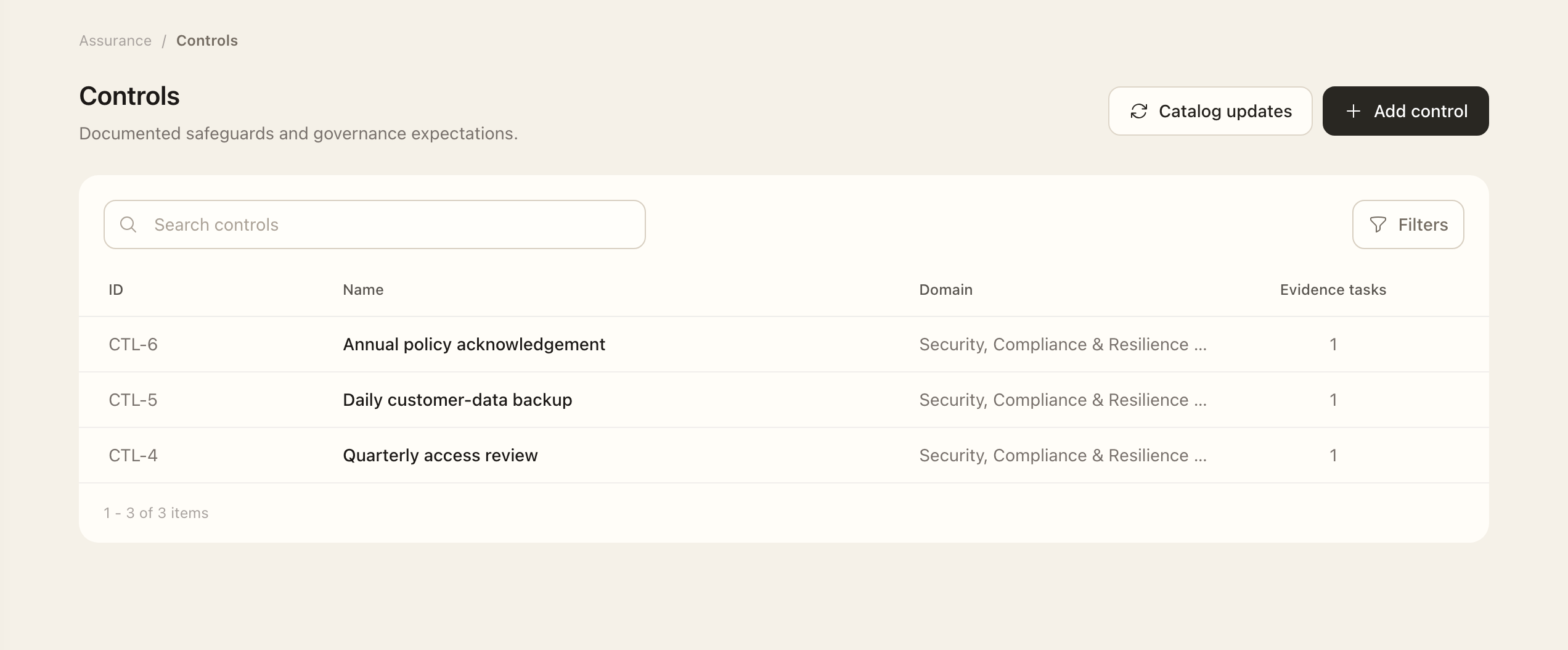
- Open Controls & Evidence → Controls and choose Add control.
- Select an item from the active SCF catalog, or choose a custom control.
- Enter the local name, purpose, description, and accountable owner.
- Complete the required operating frequency, review frequency, execution, and classification fields.
- Save the control and open its record to check the saved profile before managing its relationships.
Operating frequency describes when the control runs: continuously, on an event, or on a schedule. Review frequency describes when its suitability should be reconsidered. Execution can be manual, IT-dependent manual, or automated; that designation is separate from how evidence is collected.
Connect its context
Use Frameworks to relate the control to reference requirements, and Evidence Tasks to associate recurring collection work. Manage relationships from those pages rather than assuming a profile edit changes them.
Catalog-derived controls retain source and version provenance while keeping local content for historical stability. Review catalog updates explicitly; see Framework mappings and catalogs.
Keep operation and assurance separate
Use Maturity assessments to record current and target maturity. Use Control reviews to reconsider the profile and relationships. Check Activity for applied changes.
Owners can initiate their control's assessments and reviews and view linked evidence tasks. That responsibility does not automatically grant direct control editing or relationship management.
Expected outcome
The control is available in the registry with its saved owner and operating details. Saved framework and evidence-task links appear on their respective pages. Creating the control does not record a maturity result or prove that it operates effectively.