
Google Analytics
The Google Analytics connector supports Identity & Access collection for a Google Analytics account.
Required values
- Service Account - Client Email
- Service Account - Private Key
- Google Analytics - Account ID
Required access
The service account requires the Administrator role for the configured account so Superviso can read the account's
user and access information.
Use a service account created specifically for the connector and protect its private key as a credential.
Before you start
Create the credentials listed above in the provider’s administration tools.
Configure in Superviso
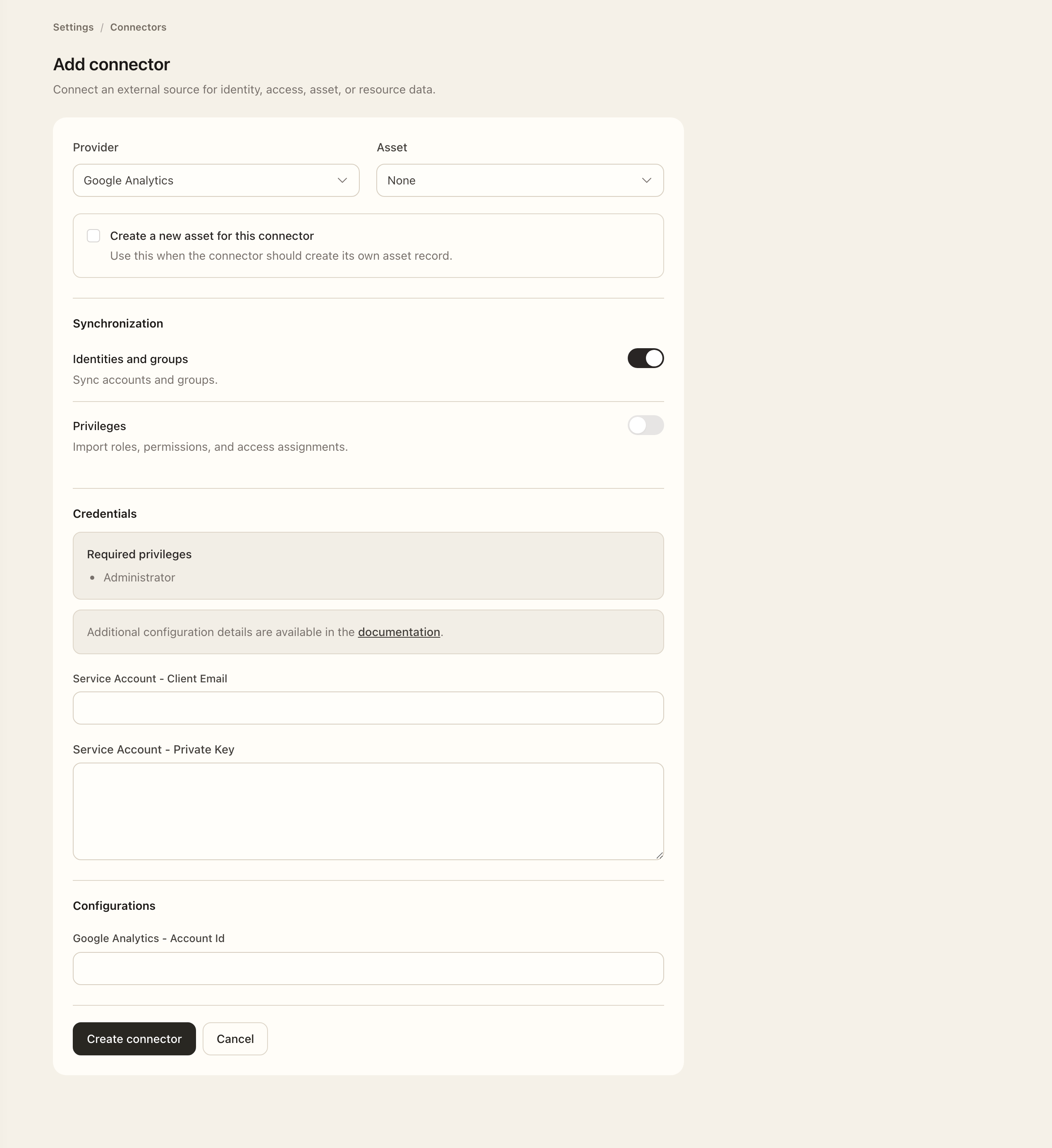
- Open Settings → Connectors and choose Add connector.
- Select Google Analytics from Provider.
- Associate the intended asset, or use the new-asset option when appropriate. Enable only the supported synchronization options you need.
- Enter Service Account - Client Email, Service Account - Private Key, and Google Analytics - Account Id.
- Recheck the required privileges, scope, and filters, then choose Create connector. Resolve any validation errors shown by the form.
- Open the saved connector, choose Sync connector when available, and confirm the synchronization scope.
- Open Logs, wait for execution to finish, and inspect the result and any errors. Open the relevant Identities, Privileges, or Resources page for the enabled integration to verify collected records.
Expected outcome
The connector is saved for Google Analytics with the intended integration and collection scope. Synchronization logs show progress, results, and imported records.
If setup or synchronization fails
Check the exact account or organization identifier, required form values, credential validity, granted access, and selected filters. Inspect the failed log’s details before retrying. If only some records are missing, check their scope and provider permissions. For synchronization status and source-managed fields, see Connectors and synchronization logs.