Exceptions
Capture an exception
- Open Governance Library → Exceptions and choose Add exception.
- Select the affected document and check its latest published version.
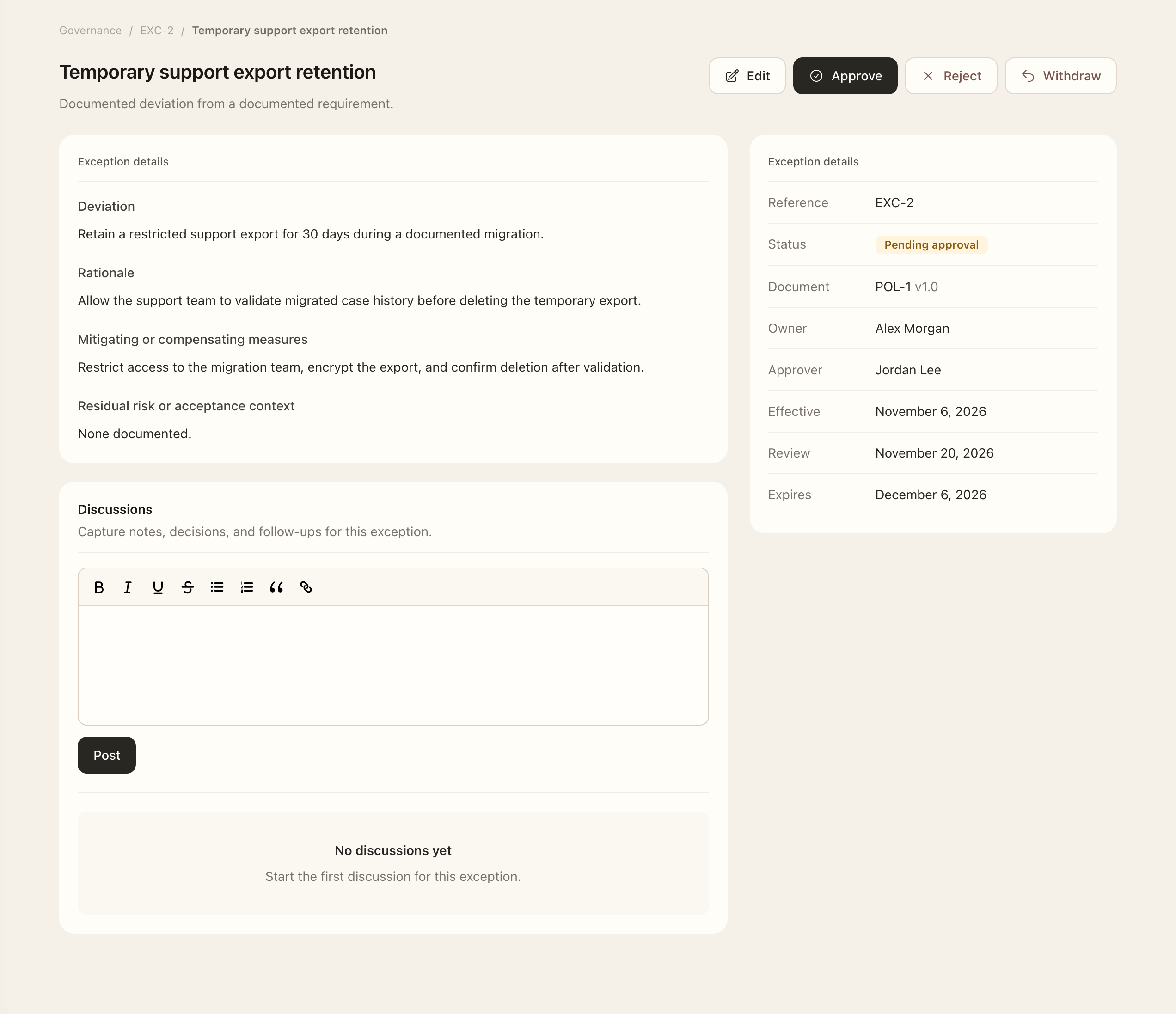
- Describe the deviation and business rationale, then assign the owner and approver.
- Set the effective and review dates and any expiry. Expand additional details for mitigation, linked controls, and residual context.
- Save and follow the available approval action, then check the resulting state. Creating the record alone does not authorize the exception.
Review the effective date, review date, and optional expiry. Expand additional details to record mitigation, linked controls, and residual context. Submit through the available approval workflow and check its resulting state. Capturing an exception does not authorize it.
Review the decision
- As the assigned approver, open the exception from its Workspace Task or record.
- Check the deviation, business rationale, scope, safeguards, and effective, review, and expiry dates.
- Open Mitigating Controls to inspect any linked safeguards.
- Record the available approval or return decision and its required explanation.
- Open the exception’s history to follow its decision and status.
Continue or withdraw
For an approved exception due for review, the owner records a comment and either requests continuation with a new review date or withdraws the exception. Continuation requires the approver's confirmation before the new date is applied.
Check expiry separately from review dates: an approved exception expires after its expiry date. Use registry review filters and due indicators to find upcoming and overdue obligations. Discussions retain supporting notes, but a discussion comment does not replace the approval or continuation action.
Expected outcome
The exception retains the document version, scope, dates, and recorded decision. A continuation changes the review date only after the approver confirms it.