Data types
Select a consistent data type
- Open Assets & Data → Data Types and search for the information category.
- Open the type and check its classification and Personal Data designation.
- Inspect its Assets, Resources, and Third Parties pages to see where it is used.
- For an asset or resource, open that record’s Data Types page, use the relationship management action, select the type, and save.
- Reopen the related record to check the saved association and resulting classification.
Personal Data identifies information relating to identifiable people. Use the designation based on the information actually handled, rather than the name of the service processing it.
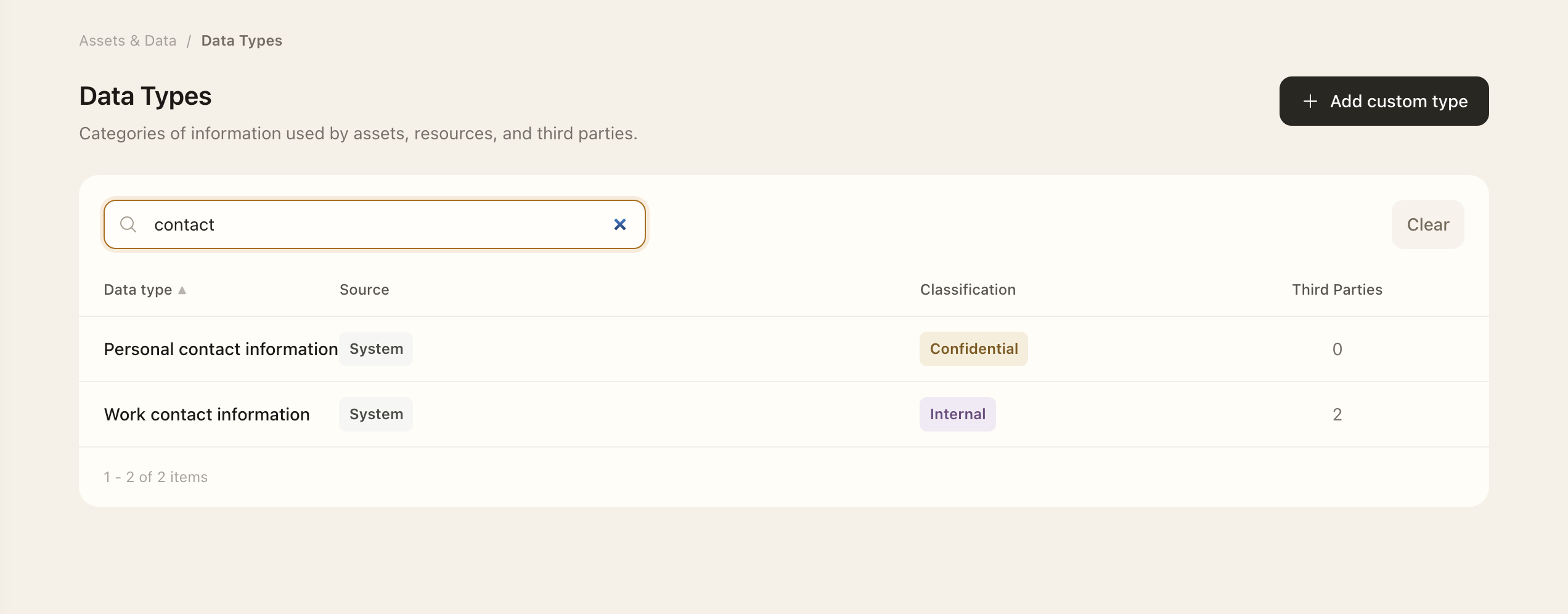
System and custom types
System types provide shared catalog definitions. Their catalog identity and Personal Data designation are read-only; administrators can map them to the organization's classification levels through Edit.
For a business-specific category, an authorized administrator can add a custom type, set its classification and privacy designation, and associate it from the relevant record's relationship workflow. A linked custom type must be detached before deletion.
Check classification effects
Changing a type's classification recalculates directly linked records and propagates through related resources, assets, and third parties.
For a third party, review data context through its assessment so the change retains assessment history. For assets and resources, use their Data Types relationship pages.
Expected outcome
The selected type appears on the record’s Data Types page. Its classification can affect the record and related inventory. Third-party data context is updated through a completed assessment, not by assuming an inventory link alone completes a review.