Tasks and follow-ups
Review your inbox
- Open My Workspace → Tasks. Open work is shown by default.
- Filter by task type and status; check due dates and overdue work first.
- Select a task to open its source record.
- Check the record and your assignment, then use its available action to complete your step.
- Return to Tasks and check the updated status or remaining actions. Change the status filter if you need to find completed work.
An approval can pass work to another person; completing your action does not necessarily finish the whole workflow.
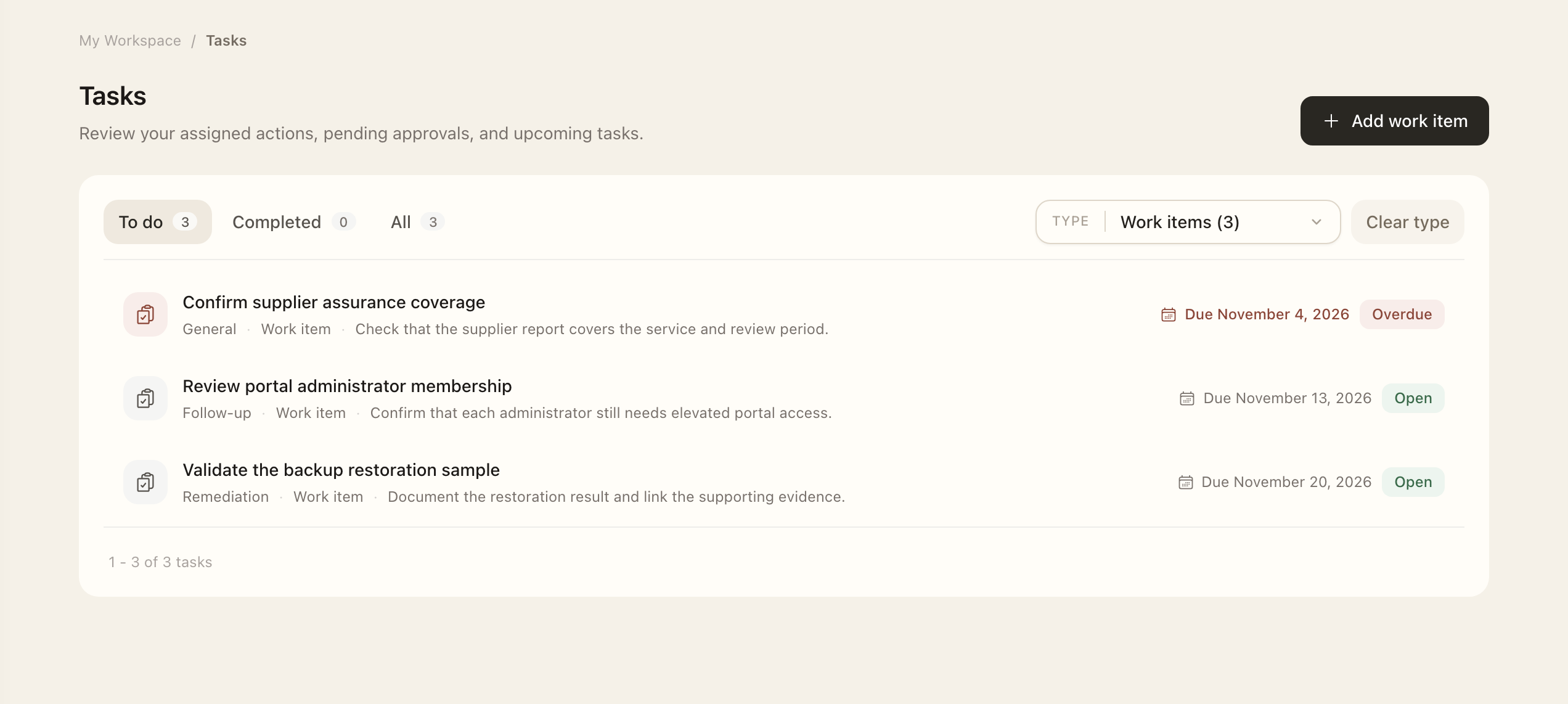
Work with different task types
Document tasks lead to the document reader. Access approvals and provisioning lead to the request. Review and assessment tasks lead to the relevant record and its assigned action. Complete these steps on the source page so the decision remains attached to the right record.
Add a personal follow-up
When your organization's settings allow it, use the workspace work-item creation action to add a self-assigned follow-up. Enter a specific title, category, description, and applicable due date, then save. Update its status as work progresses.
If that creation action is unavailable, an administrator may have disabled personal task creation. Existing assigned and workflow-generated tasks remain available. Organization administrators can manage broader assignments through Work items.
Keep checking Tasks
Email notifications help you find work, but Tasks provides a direct way to check it even when email is delayed. If an action is missing, check its current status and your assignment before contacting support.
Expected outcome
The source record retains your action, and Tasks reflects the work that still requires attention. An approval may pass work to another participant rather than finish the workflow. Email delivery is not required to check your Tasks.