Email integrations
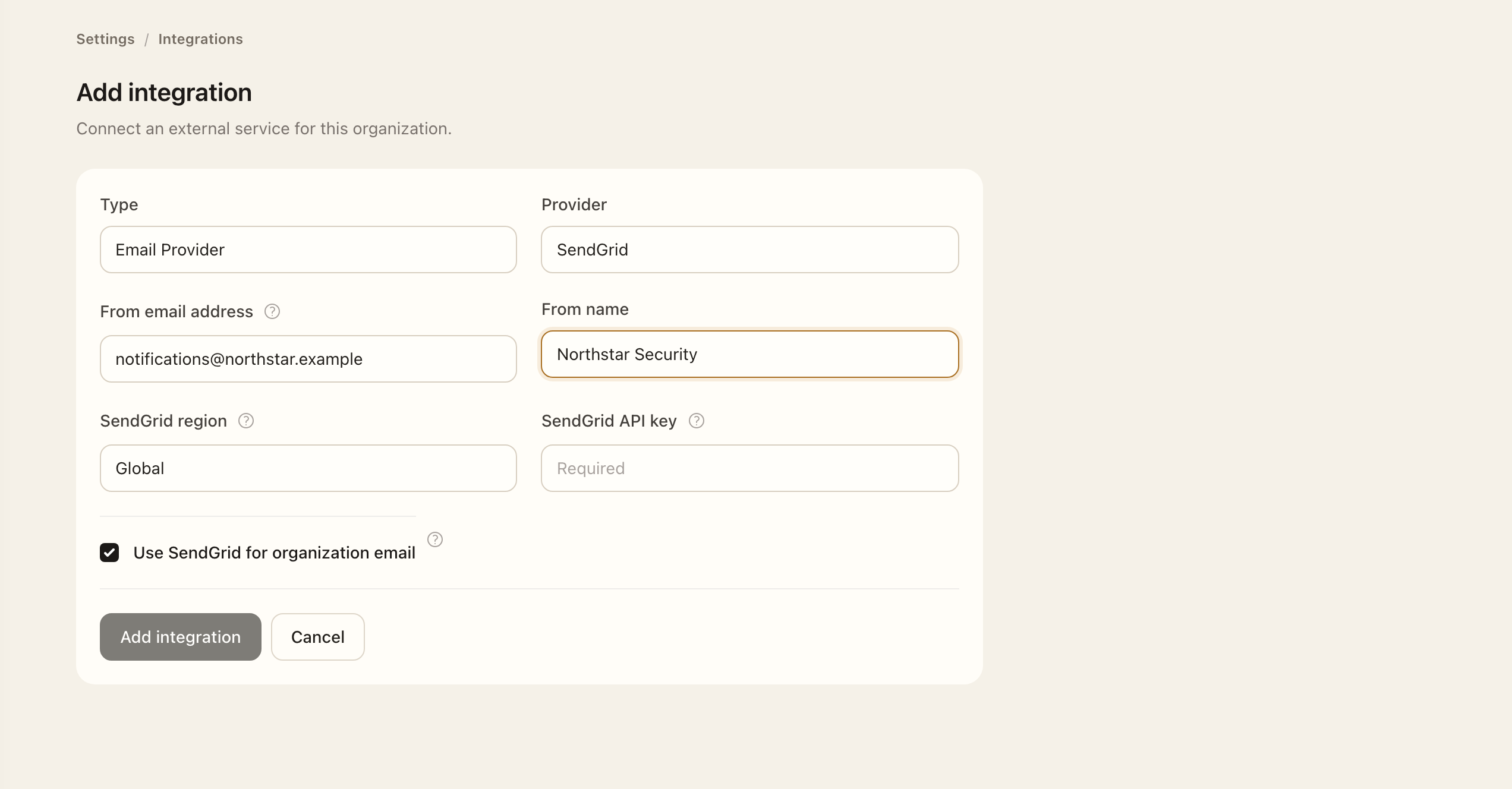
Configure an email provider
- As an Organization Administrator, open Settings → Integrations and add or edit an email integration.
- Select Amazon SES or SendGrid.
- Enter the required credentials and a sender verified with that provider.
- Select the correct provider region and review whether the integration will be used for organization email.
- Save the intended configuration. On an existing integration’s edit page, follow Send test email as described below; testing does not save or activate changes.
For SendGrid, select Global or European Union to match the account's region. For SES, complete the required account and region details shown by the form. Review the switch controlling whether the integration is used for organization email; a disabled integration leaves the platform provider and sender in use.
Test the settings
- Open the existing email integration’s edit page and check the current form values.
- Choose Send test email and confirm. The signed-in administrator is the recipient.
- Read the result and wait if the test is still queued.
- Check the recipient’s inbox and spam folder; provider acceptance alone does not confirm delivery.
- Save the intended settings separately. The test uses the form settings and retained credentials where applicable but does not save or activate them.
If mail is missing
Inspect Platform settings for sandbox mode, verify the sender and recipient, and review provider configuration. Sandbox mode prevents ordinary tenant email and does not validate provider credentials through a send.
Users can still check assigned work directly in My Workspace even when notification delivery is delayed.
Expected outcome
The saved enabled integration is available for organization email; a disabled one leaves the platform provider in use. The test result and recipient’s inbox let you check email delivery.