Assets and relationships
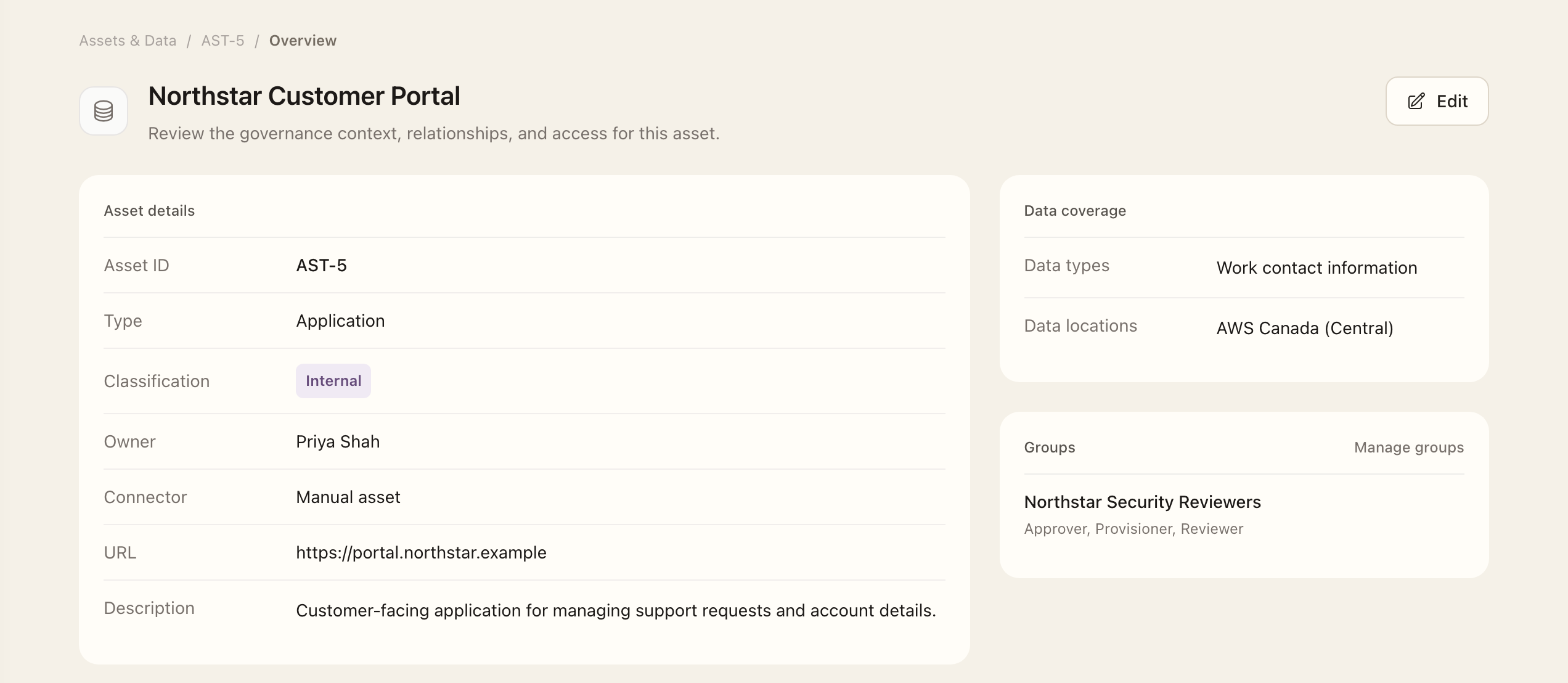
Use Assets & Data to document what your organization operates and the information it handles. An asset represents a governed system or service; a resource records an individual component or provider resource associated with it. Data types describe the information involved, and data locations describe where it is stored or processed.
- Open Assets and choose Add asset. Select a connector-backed source when appropriate, or document the asset manually.
- Record its purpose, type, and accountable owner.
- Open the asset's related pages to associate resources, data types, data locations, related assets, and third parties. Use the relevant relationship page's management action to change those links.
- Check the resulting classification and keep the inventory current as the system changes.
Classifications can be derived from linked data types and resources. Correct the underlying data relationships when the displayed sensitivity does not match the system's documented use. For personal information, use the data type's Personal Data designation. Record confirmed locations; Global / Worldwide means known processing across jurisdictions, rather than an unknown location.
Review changes over time
Use the asset’s Activity page for recorded changes, and Asset reviews for structured periodic review. Correct provider-managed inventory through the connector or upstream service.
Expected outcome
The saved asset appears with its accountable owner and linked records. Its displayed classification reflects the recorded data context. Creating or editing an asset does not complete an asset review or change provider-managed inventory.