Organization profile and support
Review organization details
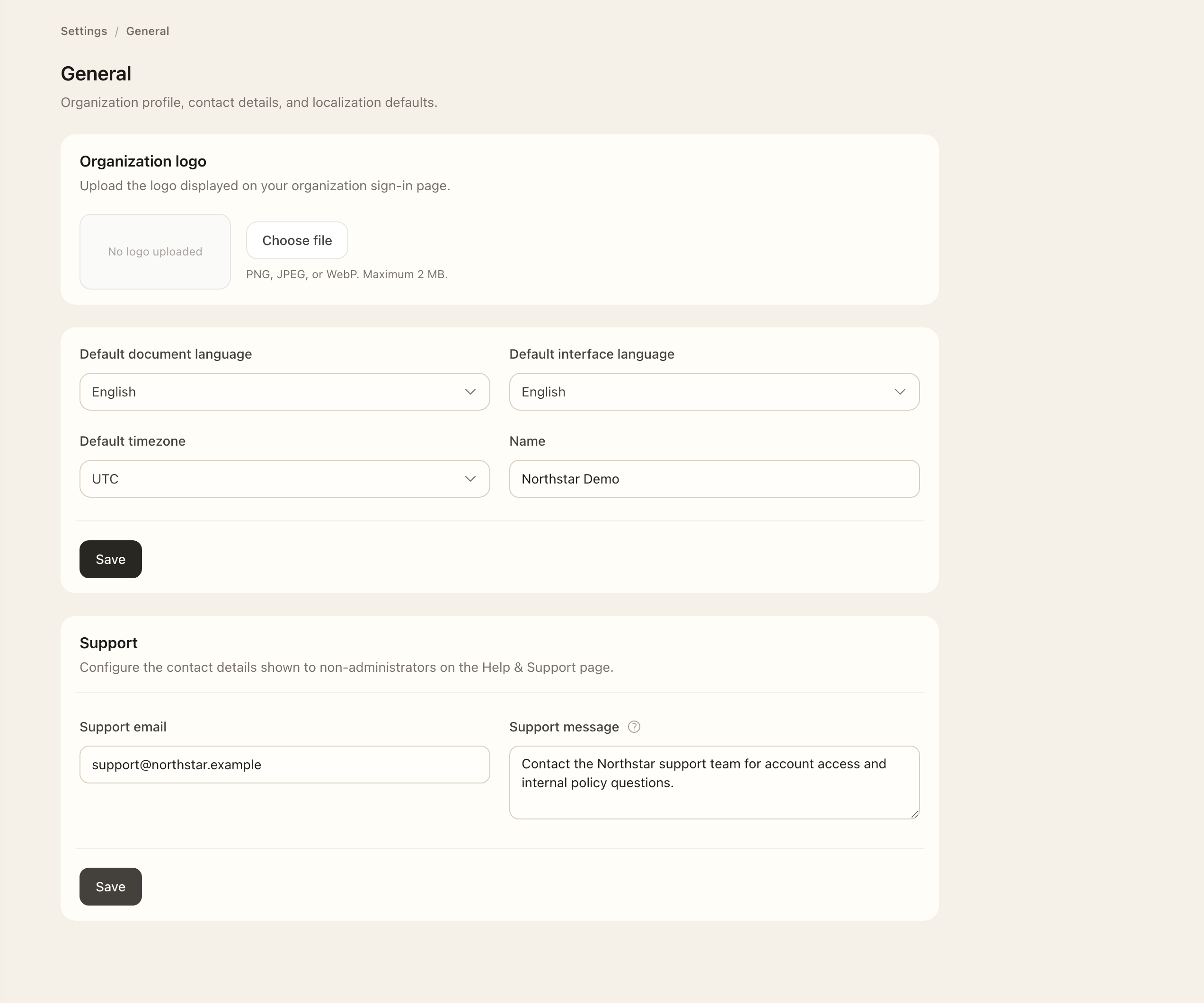
- As an Organization Administrator, open Settings → General.
- Review the organization profile, default interface language, document language, and timezone.
- Edit the intended values and save each relevant form.
- Recheck the saved values before moving to support or logo settings. Individual account preferences can override applicable defaults.
Configure support
Set the organization support email and message. These are shown to non-administrators in Help & Support; the support address is also used in relevant automated messages. Use an address your employees can reach for account access, assignments, and internal policy questions.
Administrators also see Superviso support in Help & Support. Keep internal organization support distinct from product-support escalation.
Maintain the logo
Upload a PNG, JPEG, or WebP logo using the organization logo controls. Check the local preview before saving. You can replace or remove it and choose whether it appears on the tenant sign-in page. Turning off sign-in placement keeps the uploaded file.
The sign-in logo is publicly readable so employees can recognize the organization before authenticating. Tenant emails use organization identity and the available logo as well.
Continue with Roles and groups and Platform settings to configure who can work and how the environment behaves.
Expected outcome
The settings page shows the saved organization defaults. Help & Support displays the saved internal support contact and message to employees. The saved logo appears in the enabled placements; an individual’s account preferences can still override applicable defaults.