Audit calendar
Configure the initial schedule
- As an Organization Administrator, open Settings → Audits.
- Choose the period containing today and the required cadence.
- Check the proposed dates, then confirm the initial schedule.
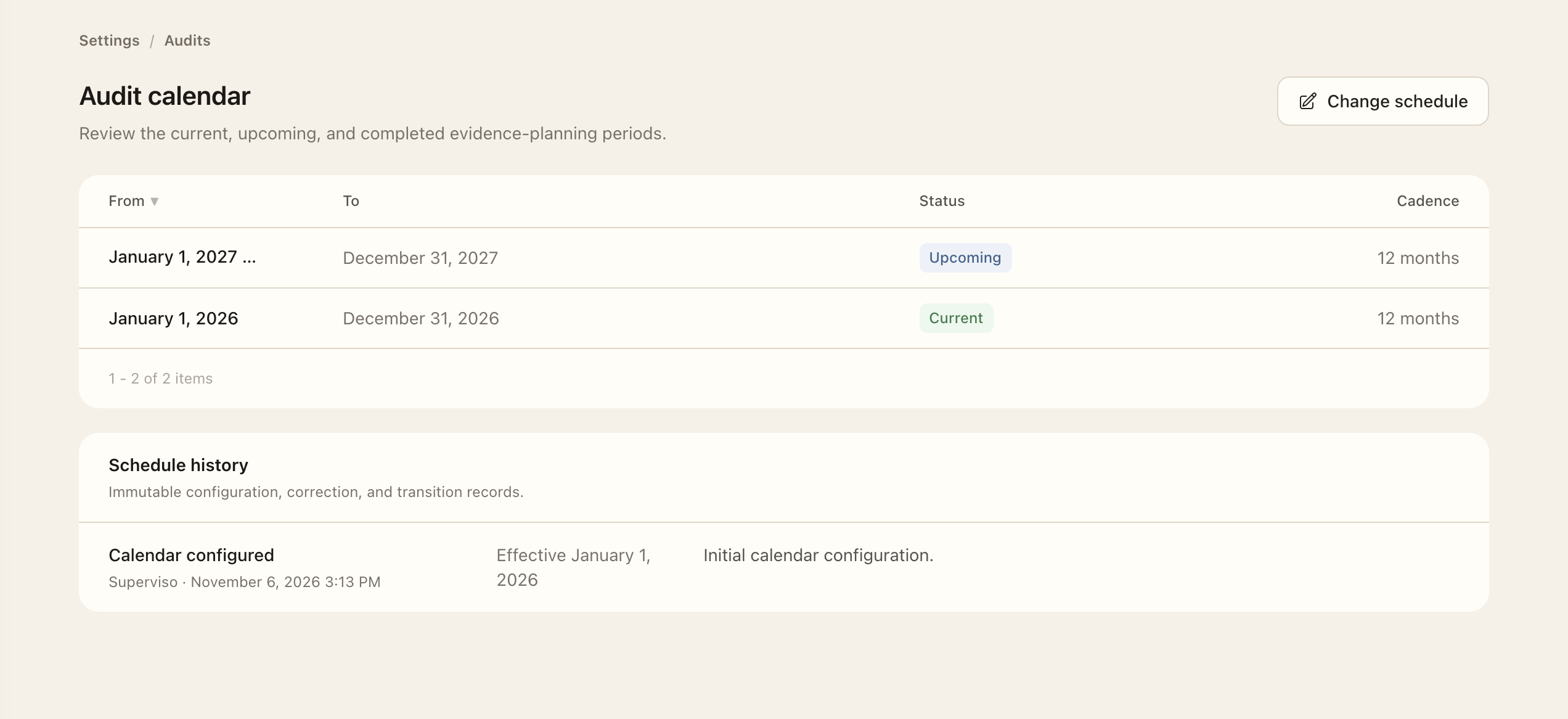
- Review the generated current and upcoming audit periods.
- Configure evidence tasks only after the calendar is ready, then check their periods in Timeline or Calendar.
Add evidence tasks with their required frequency, assignee, and reviewer after the schedule is ready. Task periods stay inside their audit period. Use Evidence calendar and timeline to inspect the resulting work.
Change the schedule
- Choose Change Audit Schedule and select the available approach matching the intended change.
- Review the preview’s proposed cadence, effective date, and affected periods.
- Enter the required reason and confirm only when the preview is correct.
- Check the current and future periods and the new schedule-history entry. Existing completed or referenced evidence is protected from unsafe rewrites.
Provide the required reason and check the effective date and affected periods before confirming. Completed or referenced history and evidence activity are protected from unsafe rewrites. Schedule history records the decision, actor, and effective date.
Check the result
Review current and future periods after saving. Audit periods are inclusive and non-overlapping. If a task's due date needs changing, use its editable period controls rather than changing the organization's whole schedule.
Quarterly access-review windows are separate from the Audit Calendar. Changing evidence cadence does not redefine the scope of those access reviews.
Expected outcome
Current and future audit periods follow the saved schedule without overlap. A confirmed schedule change appears in schedule history with its effective date and reason. Existing evidence history remains protected; quarterly access-review windows are separate.