Evidence calendar and timeline
Choose a planning view
- Open Controls & Evidence → Evidence Tasks and select Timeline or Calendar.
- Choose the audit period you want to inspect.
- Apply the available search, owner, and type filters.
- Open a displayed collection period and check its coverage dates, due date, and status.
- Return to the planning view or follow the period’s available collection action to work on that period.
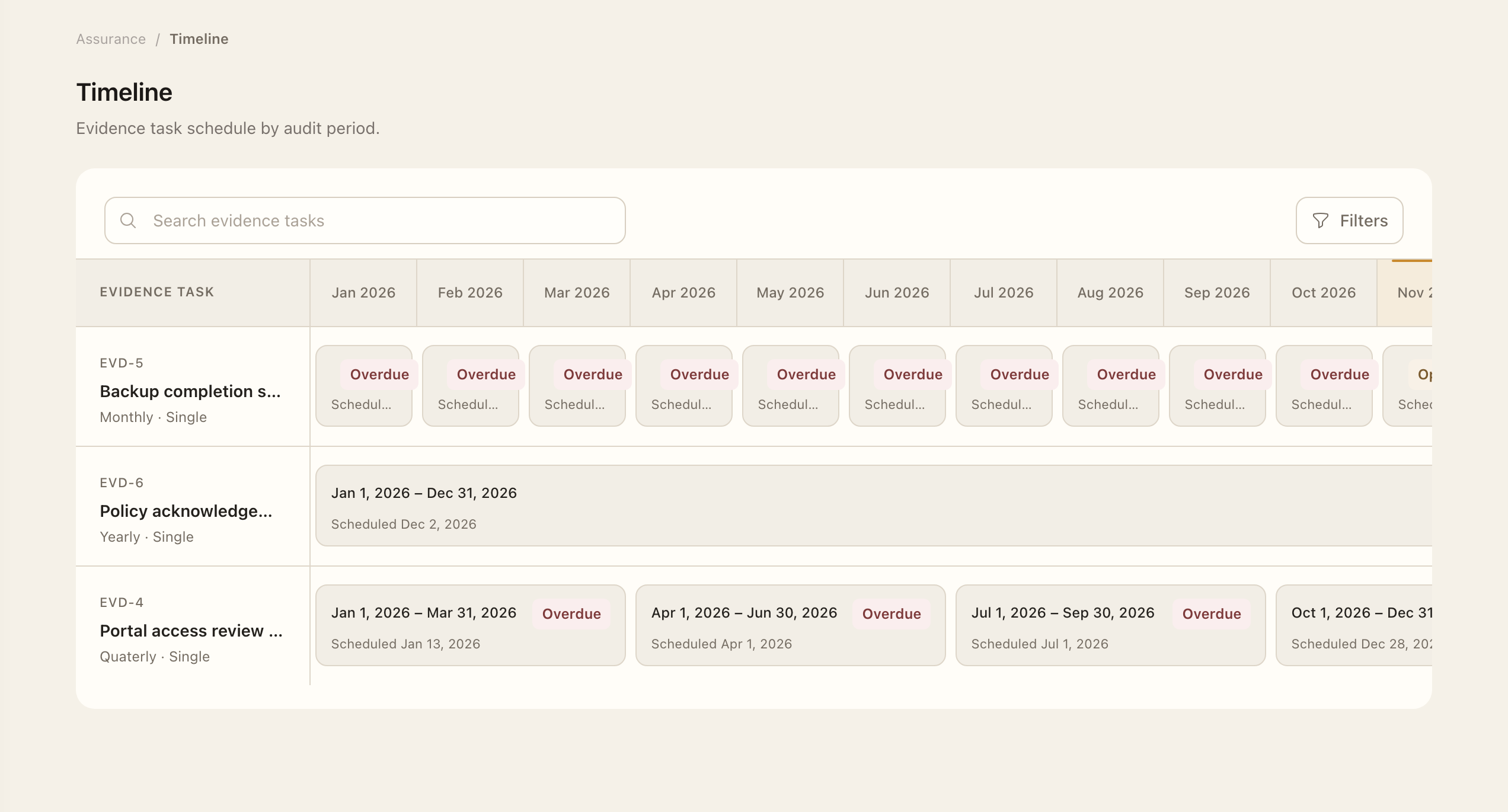
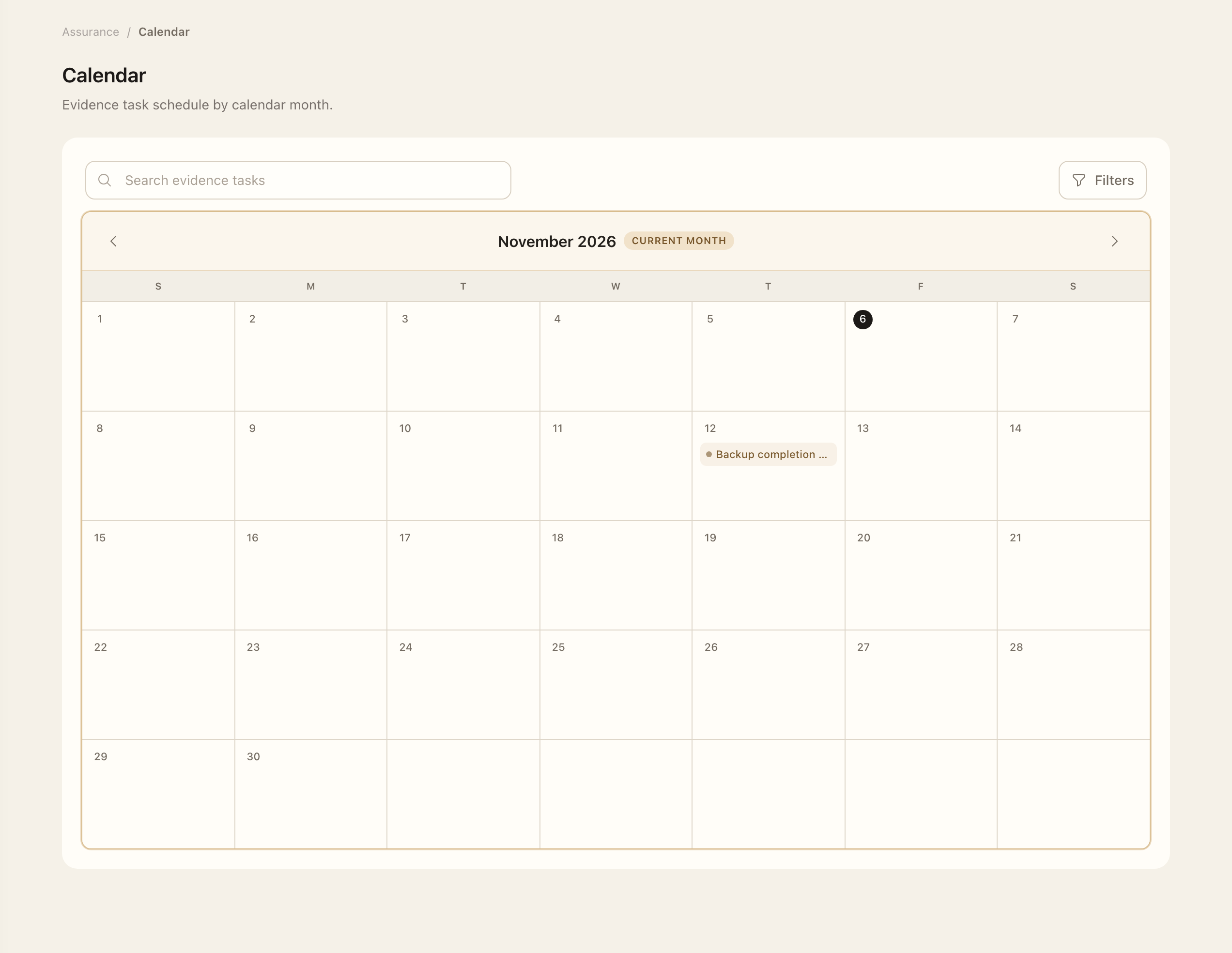
The timeline shows task lanes with coverage bars and scheduled dates. Scroll within the timeline on smaller screens to inspect later months. The calendar provides a year view with linked task events. Open a period to inspect its coverage, due date, and current status before acting.
Understand coverage and deadlines
Coverage dates define the evidence window. The due date is the scheduled collection deadline within that window. Future periods cannot start before coverage begins; an overdue period may still allow late collection. A late upload should explain the evidence's actual coverage rather than imply it was collected on time.
Authorized users can adjust a due date only while the period remains editable, to a future date inside its coverage window. Follow Evidence tasks and collection for collection and review.
Missing or unexpected periods
Check the selected audit period and filters. If no schedule is configured, an administrator needs to set the Audit calendar. Audit periods are evidence-planning windows and are separate from quarterly access-review windows.
Expected outcome
The view shows the task periods within the selected audit period and filters. Opening an event takes you to its period details. Viewing the plan does not start collection, change a due date, or complete evidence review.