Generate and download an asset report
Export a point-in-time view after reviewing the live evidence.
Generate a report
- Open the asset overview and review its current findings, freshness, and relevant supporting evidence.
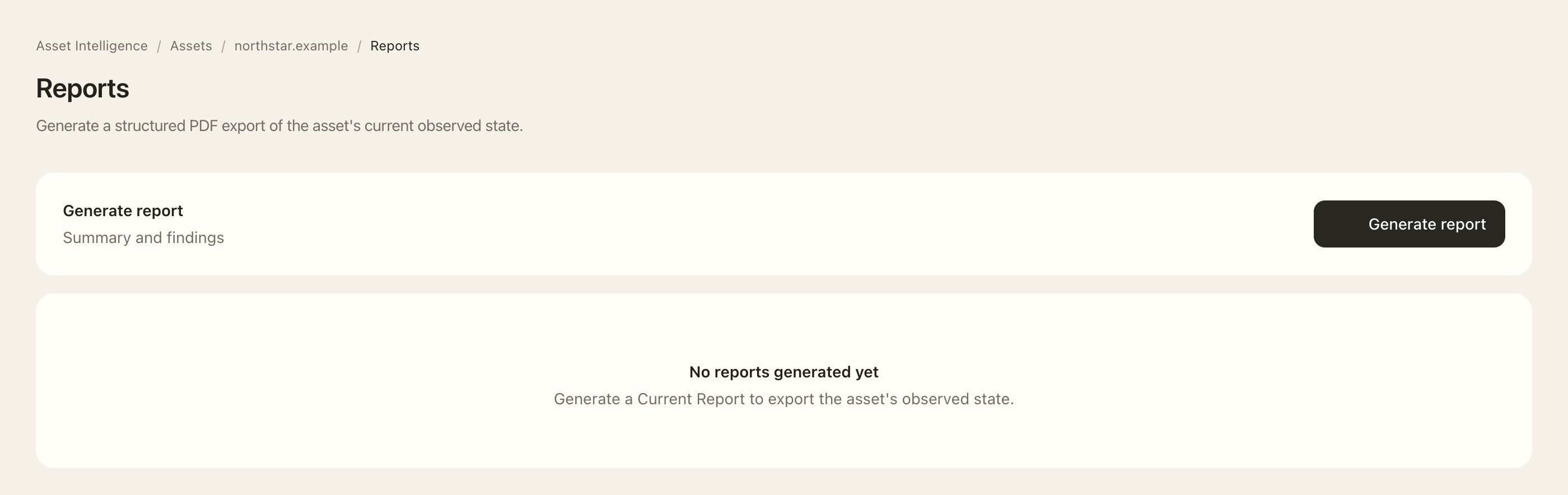
- Open Reports on the asset.
- Review the Summary and findings export shown by the page and choose Generate report.
- Wait while the history row shows Generating. The page updates status; reopening the page also lets you check progress.
- When the report is Available, use its download action and check the generated asset and date before sharing it.
- If generation fails, use the displayed error to troubleshoot or contact support.
Expected outcome
You have a PDF representing the asset’s observed state at generation time. Check the expiry shown in report history and retain any needed copy before cleanup. It is an export, not a live dashboard or independent assurance opinion. Review its contents and intended audience before sharing.
Only authorized owners or members with delete permission can remove a report. Deleting a generated report does not remove the monitored asset or remediate its findings. Report generation and downloads require current product access.