Asset Intelligence MCP Server
Kantoku provides an OAuth-protected Model Context Protocol (MCP) server for Asset Intelligence. A compatible AI tool can use it to inspect monitored assets, current posture, findings, and recent changes. With the additional write capability, it can also update finding dispositions on your behalf.
The same MCP tools are available on all plans. The inventory, monitoring, and history limits of the selected organization's plan still determine which data is available.
Connect an MCP client
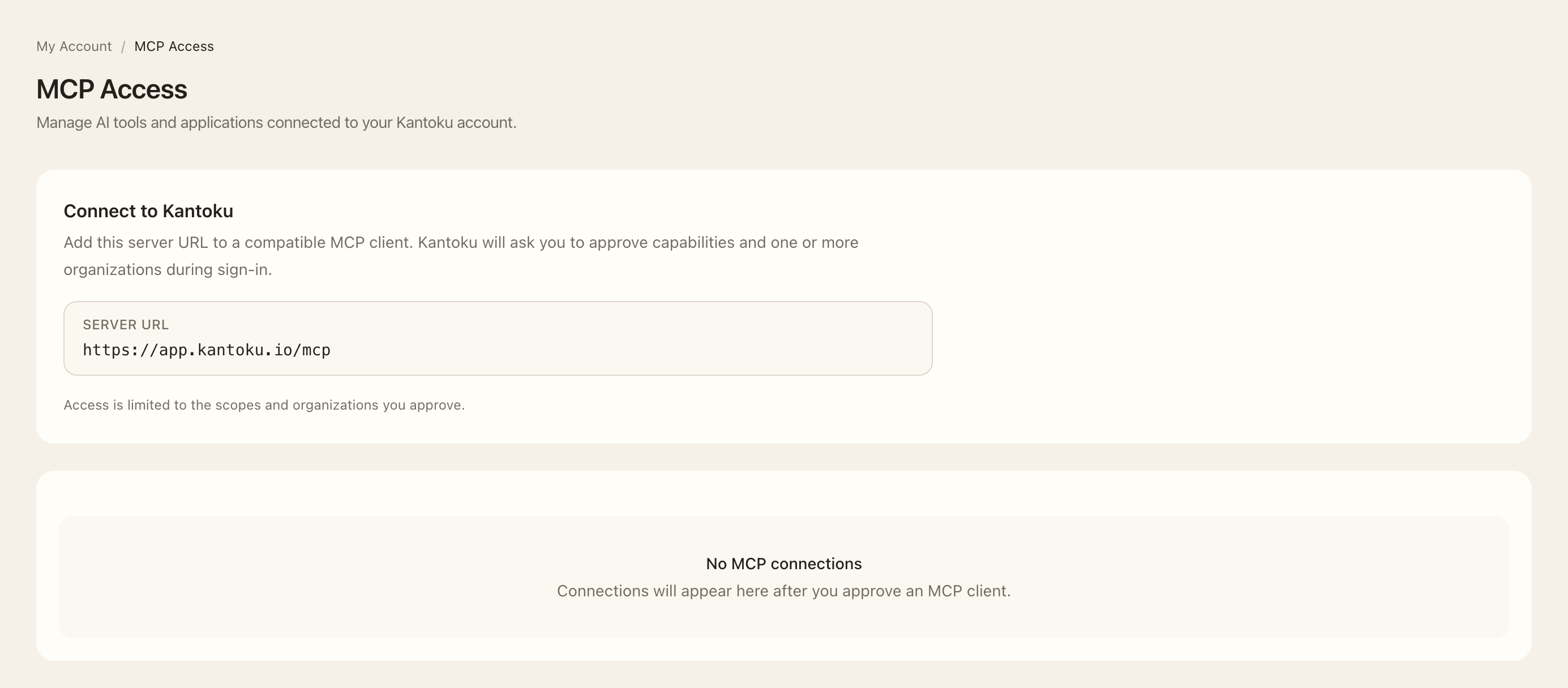
- In Kantoku, open My Account → MCP Access.
- Copy the server URL shown under Connect to Kantoku and add it to your compatible MCP client.
- When the client opens Kantoku in your browser, sign in and review the capabilities it requests.
- Select one or more organizations for the connection, then approve access.
- Return to the client. It should begin by listing the organizations approved for that connection.
The server URL ends in /mcp. OAuth registration, authorization, and token refresh are handled by the client and
Kantoku; you do not need to create or copy an API token.
Available capabilities
During authorization, Kantoku lets you approve only the capabilities requested by the client:
| Capability | What it allows |
|---|---|
| View approved organizations | Lists the organizations selected for this connection that you can still access. |
| Read Asset Intelligence | Reads monitored assets, posture, findings, evidence, and recent changes for an approved organization. |
| Update finding dispositions | Changes the organization-specific review status and note for a finding when your organization role permits it. |
You can approve a subset of the requested capabilities. A client cannot use a capability or organization that was not included in the approval.
What you can ask your AI client to do
Use natural-language requests in your connected AI client. The client handles the tools needed to answer them. If your connection includes several organizations, name the organization in your request.
| Action | What you can ask for |
|---|---|
| View connected organizations | Show the organizations available through this connection. |
| Browse monitored assets | List monitored domains and IP addresses for an organization. |
| Understand an asset's exposure | Summarize its Exposure Score, grade, risk drivers, findings, ports, pages, and recent changes. |
| Find relevant findings | Show findings filtered by asset, severity, review status, or resolution state. |
| Investigate a finding | Explain its evidence, remediation guidance, and current assessment. |
| Review recent changes | Summarize observed changes for an asset. |
| Update a finding's assessment | Change its review status and note when the connection has write access and your role permits it. |
For example, ask “Which of our assets have the highest Exposure Scores?” or “Show unresolved high-severity findings for northstar.example.” The client can retrieve the relevant records and summarize them in the conversation.
Review findings through MCP
Your AI client can update a finding’s assessment using the same review statuses as the Kantoku interface:
- Unreviewed
- Accepted risk
- Not applicable
- False positive
Accepted risk and false positive require a note. The change also requires both the approved MCP write capability and a Kantoku organization role that can update the selected organization.
How access stays scoped
Kantoku checks the connection's approved capabilities and organizations on every call. It also rechecks your current organization membership, role permissions, and Asset Intelligence access. Losing access to an organization or product therefore prevents new MCP requests from using it, even if the organization was approved earlier.
A single connection can work with several approved organizations. Your AI client handles the organization context for each request. Results include only Asset Intelligence information available through the connection and visible within that organization.
Review or revoke a connection
Open My Account → MCP Access to see connected applications, their approved capabilities, approved organizations, and approval time. If an organization grant is no longer accessible, the page identifies it there.
Choose Revoke access to invalidate that application's authorization for your account. Revocation stops its access and refresh tokens across every approved organization without affecting another Kantoku user's separate authorization for the same client.
Expected outcome
The client can use only the capabilities and organizations you approved, subject to your current role, membership, product access, and plan history window. You can ask it to browse assets, explain findings, and summarize changes in those organizations. Revoking the connection stops its authorization; it does not change monitored assets or another user’s separate connection.