Add and organize monitored assets
Create domain or public-IP monitoring targets and manage tags.
Before you start
Have the domain or public IP address you want to monitor ready.
Add an asset
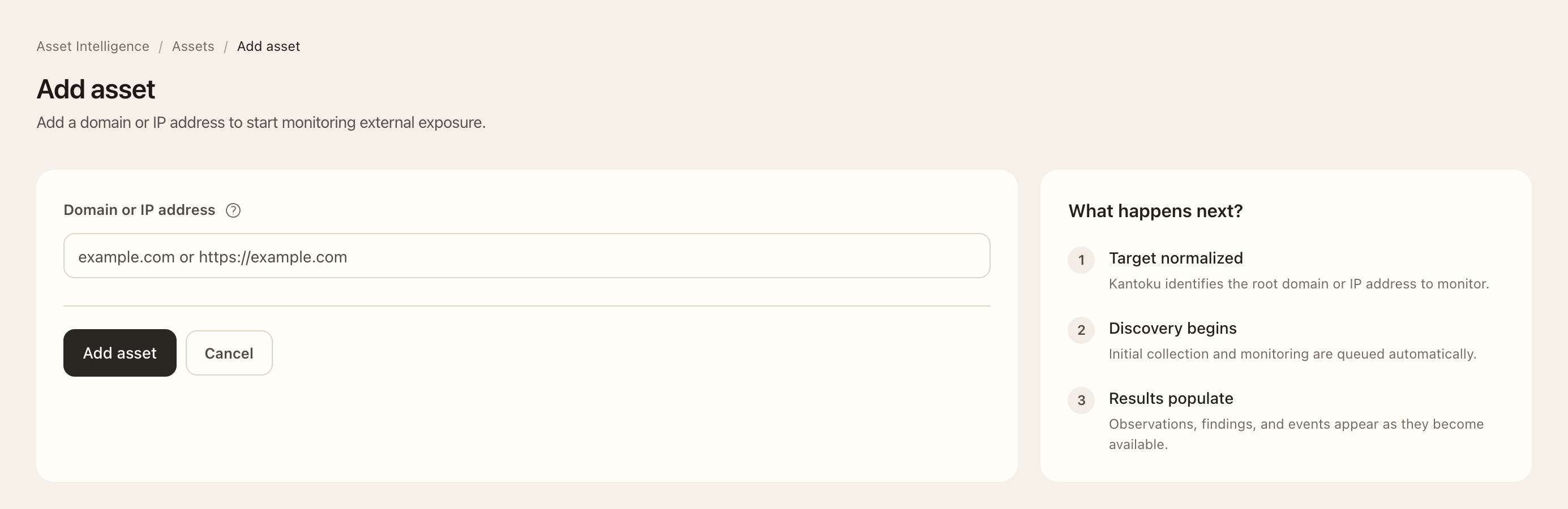
- Open Asset Intelligence → Assets and choose Add asset.
- Enter the domain, public IP address, or supported HTTP(S) URL. Domain URLs and subdomains are normalized to the root domain shown by the form.
- Check the resulting target before submitting. Use custom pages to monitor a particular URL path instead of adding it as another asset.
- Choose Add asset and resolve any validation or plan-limit message.
- Open the saved asset and allow initial observations to arrive. Check monitoring freshness before interpreting empty inventories as absence of exposure.
Find and tag assets
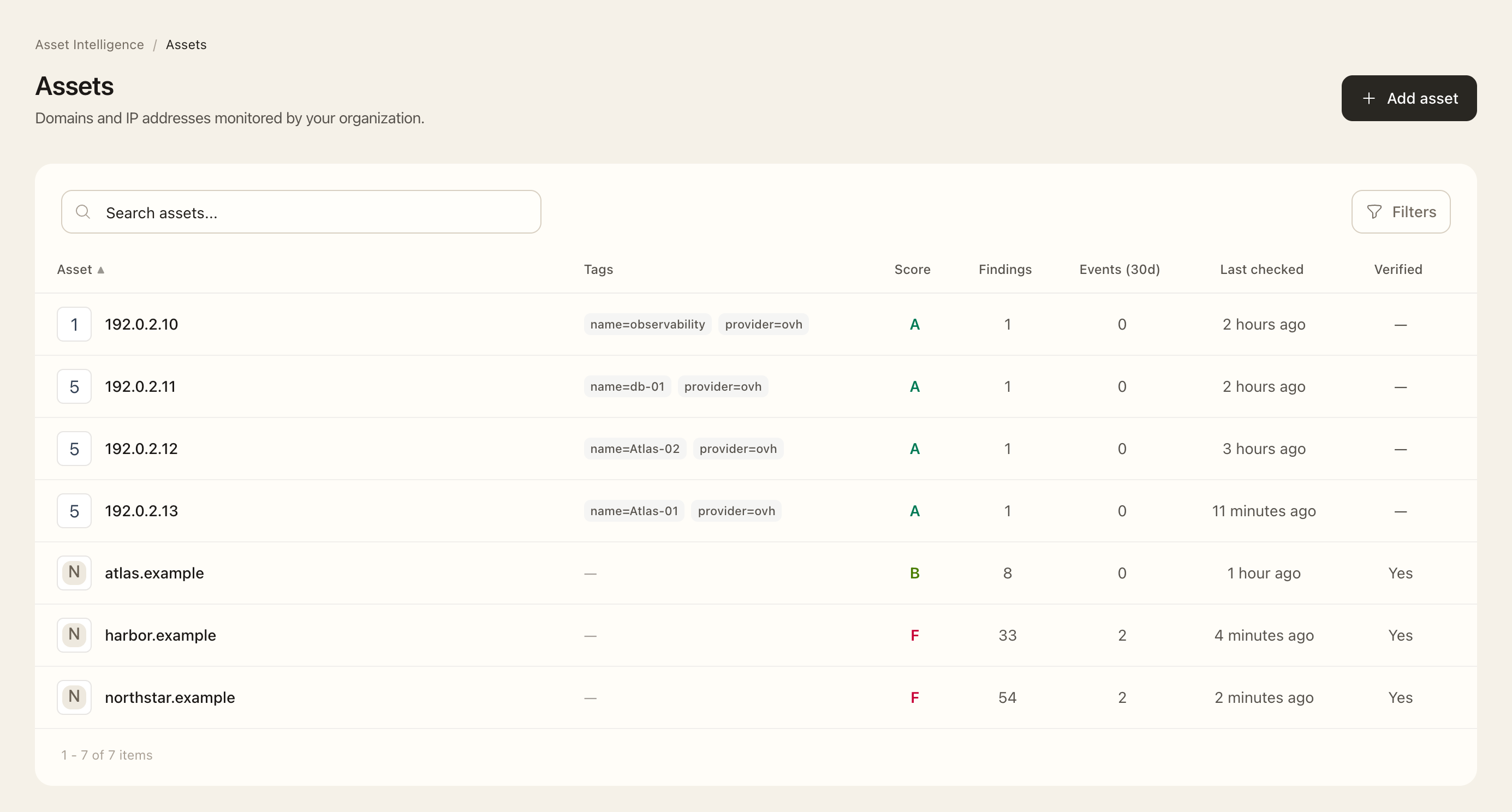
- Return to Assets and use search, asset-type, tag, or exposure-score filters.
- Open an asset’s settings/edit page and inspect its assigned tags.
- Add or remove organization tags and check the saved selections. Tags can be simple labels or key/value labels such as
environment=production. - Manage the organization’s reusable tags from its Tags settings page, then return to the inventory to filter by them.
Expected outcome
The target appears once in the selected organization’s inventory and begins collecting supported observations. Tags organize your inventory without changing the target or its exposure score.
Duplicates, limits, and removal
Private, loopback, link-local, and reserved IP targets are rejected. A target cannot be owned independently by multiple organizations; contact support for an ownership conflict. New assets can be deleted during the initial five-minute correction window; after that they are locked until 30 days old. Use the available deletion controls and displayed eligibility rather than treating removal as a monitoring pause.