Investigate observed changes
Use operational and intelligence timelines to understand what changed.
Investigate an event
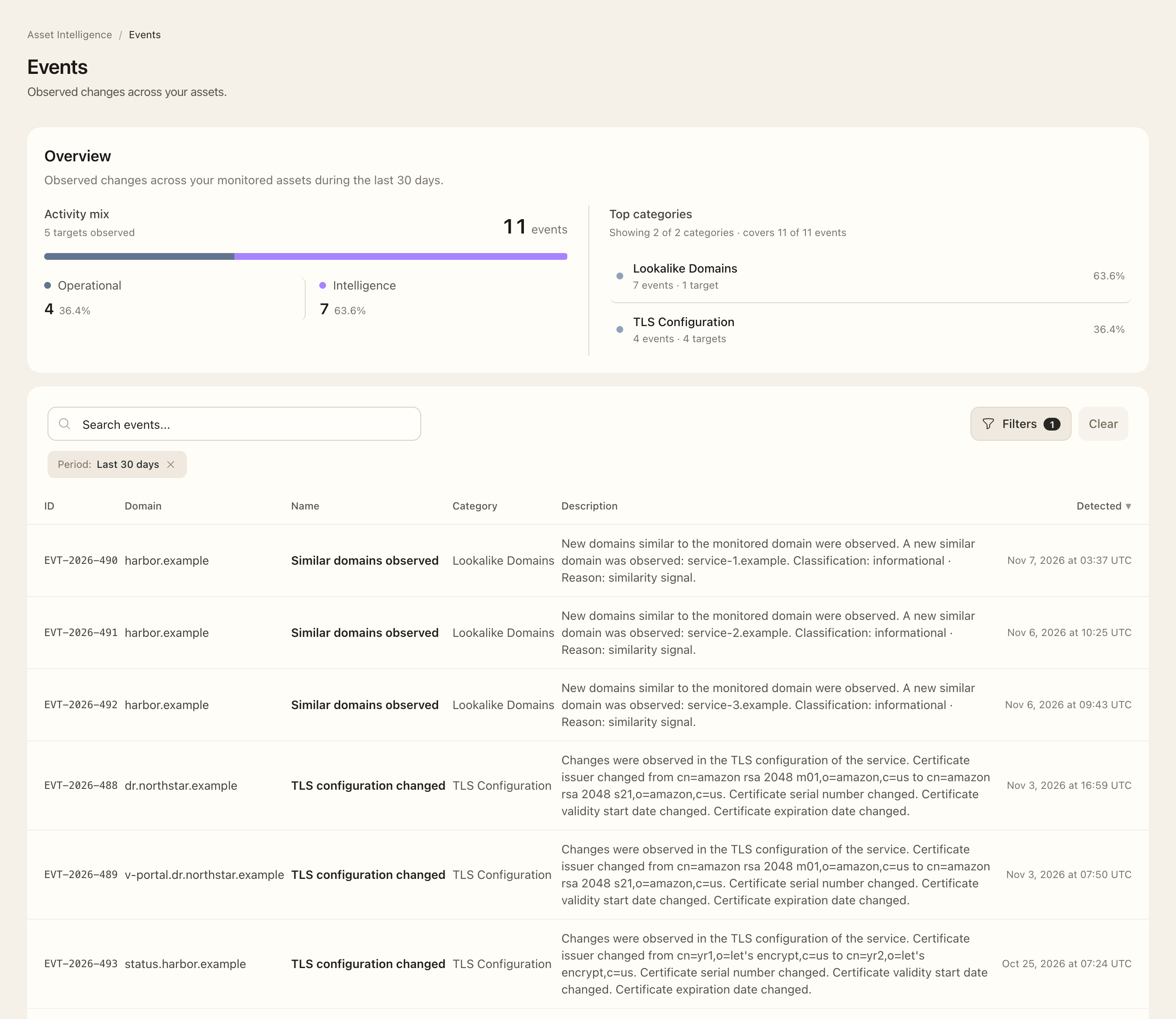
- Open Asset Intelligence → Events, or open Events on an asset.
- Check the selected period; the default covers the last 30 days. Use the available 7-day, 30-day, 90-day, or all-time option when needed.
- Select Operational for exposure and posture changes, or Intelligence for discovery such as newly observed lookalike domains.
- Apply the available target, category, priority, and search filters.
- Open the event reference and inspect its observed time, target, and recorded changes or before/after evidence.
- Follow the related asset, page, DNS, certificate, or port to compare the event with current state.
Expected outcome
You can explain a recorded change in its original scope and chronology. An event is not automatically a vulnerability, and an older event does not establish the asset’s current state. Use Findings for evaluated issues and assessments.
Some changes are held for confirmation or normalized to reduce transient noise. Similar-domain events record newly observed screened candidates rather than inventing removal events when a later source omits them. A quiet event timeline does not mean all underlying observations are identical.
Rules reference
See Finding and event rules for the conditions and change types covered by Asset Intelligence.