Configure notifications and delivery
Choose alert scope, timing, and recipients for an integration.
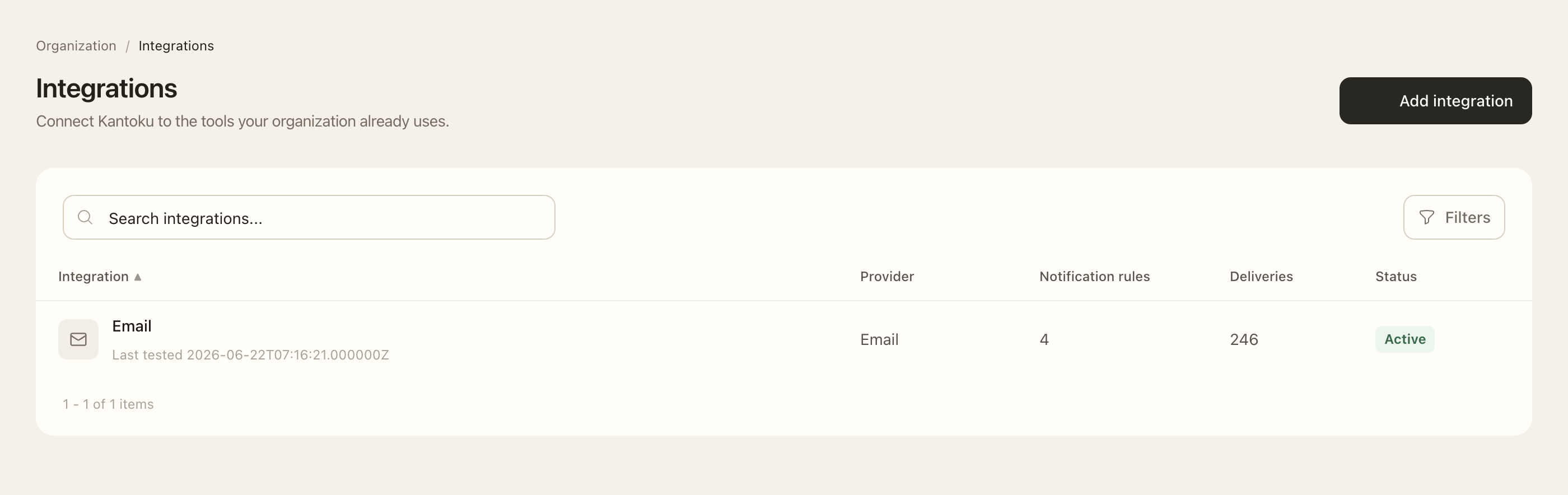
Create the integration
- Open the current organization’s Integrations settings and choose the creation action.
- Choose the supported provider and enter its required destination: recipient addresses for Email or an approved Slack Incoming Webhook URL for Slack.
- Save the configuration and open its detail page. Use its available test action when you are ready to send a test to that destination.
- View the test result in delivery history.
Add a notification rule
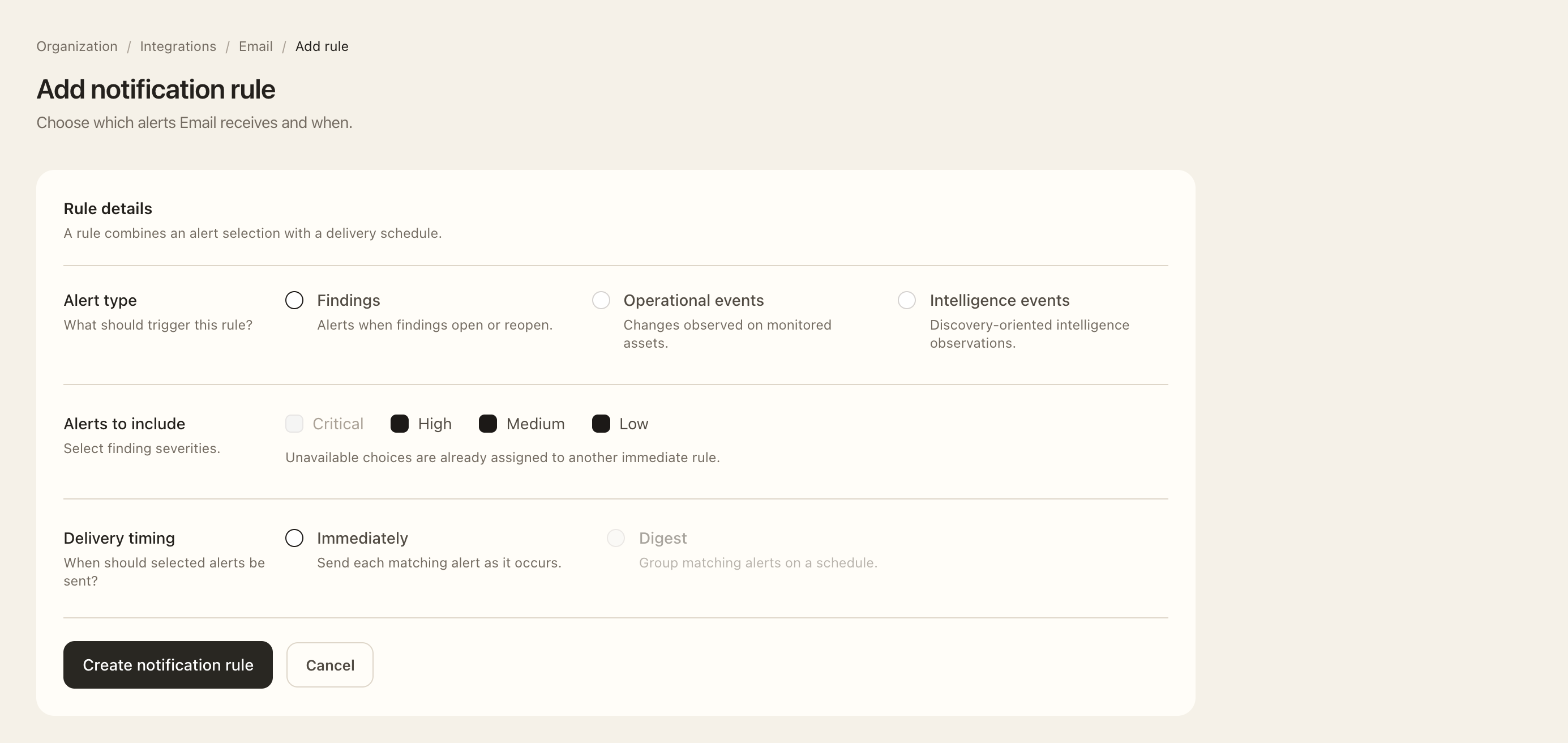
- On the integration, add a notification rule.
- Select Findings, Operational events, or Intelligence events where supported by the provider.
- Select finding severities or event priorities appropriate to that alert type.
- For Email, choose Immediately or Digest. For a digest, set hourly, daily, or weekly frequency; daily and weekly schedules also need a time and timezone, and weekly needs a weekday.
- Save and review the rule’s scope and schedule on the integration detail page.
- Use delivery history to follow the status of matching alerts.
Expected outcome
The saved rule selects future matching alerts for the configured destination and schedule. Findings notify when they open or reopen, not on every re-evaluation. New rules do not replay earlier findings. Operational and intelligence digests remain separate.
An alert selection can appear once in Immediate and once in Digest for the same type and stream; hourly, daily, and weekly share the Digest bucket. Slack sends its supported matching alerts immediately. Editing an integration’s provider configuration may require re-entering secrets; existing encrypted values are not displayed back to you.